Posts

Showing posts with the label AVERAGE

SUBTOTAL Function in Excel
Image
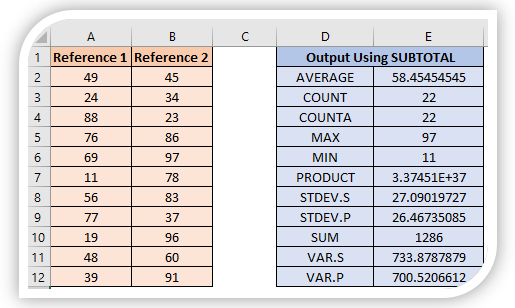
In this blog post we will learn to about SUBTOTAL function in excel. SUBTOTAL function will return subtotal from the list or database. Where to find SUBTOTAL function on Excel Screen: SUBTOTAL function can be found under “Math & Trig” function category under “Formulas” tab and under “Function Library” group as shown in below image: Once we click on “Math & Trig” function category, we can see list of various Math & Trig functions available in excel. SUBTOTAL function is highlighted in blue in below image. Once we click on SUBTOTAL option as highlighted above, we will get the function argument dialog box as shown in below image. Syntax of SUBTOTAL Function: The Syntax of SUBTOTAL function is as below: =SUBTOTAL(function_num,ref1, ref2, …) Arguments of SUBTOTAL Function: SUBTOTAL function takes arguments as listed below: function_num : In this argument we have to enter 1 to 11. Each number represents different function as listed below: 1: AVERAGE 2: COUNT 3: COUNTA 4: MAX 5: M...

Conditional Formatting:Highlighting Above Average and Below Average Values

Image
This blog post is continuation to our series of posts on “Conditional Formatting”. In this blog post, we will learn about highlighting values which are “Above Average” and “Below Average” of the selected values. To learn this post in an easy way, I have randomly listed few numbers as shown in below image. We will learn how to highlight the numbers which are above the average of all the selected numbers and which are below the average of all the selected numbers. For your easy understanding I have already calculated average value of all these numbers numbers (Which is 65). This will help us to easily cross check our output. Highlighting Above Average Values: Select all the values from which we wish to highlight the “Above Average Values”. Go to Conditional Formatting (which is available in Home Tab under Styles group) and select “Above Average” option as shown in below image. “Above Average” dialog box will appear on screen. Select the Formatting style from available list and hit OK but...

Number Filter in Excel

Image
In our previous posts we have seen about filters . In case you missed to read about what are filters and how to apply filter then click here to read in detail. In this blog post we will learn how to apply “Number Filters” in excel. We will see all the sub types of Number Filters in detail with below example. For this we have taken a data of some electronic products sold in East, West, South and North regions from 1st Aug 2019 to 1st Apr 2021 with us. Number filters can be applied to column which contain number values. So in our case we can apply number filters to column “No of Items Sold”. Click on drop down button which you will find on header cell “No of Items Sold” and you will see the “Number Filters” option as highlighted in below image. We can now filter the data present in this column based on below criteria’s: Equal Does Not Equal Greater Than Greater Than Or Equal To Less Than Less Than Or Equal To Between Top 10 Above Average Below Average Custom Filter Now, we will explai...