Posts

Showing posts with the label Fill

Conditional Formatting: Highlighting Entire Row in Excel

Image
In this blog post we will learn how to highlight entire row with the help of Conditional Formatting in excel. For this we have prepared a dummy data of 04 team members working on different tasks. We have also provided status for each task whether it is “Open” or “Closed”. We will now learn how we can highlight the entire row based on the provided status. We will highlight the entire row in green color if the status is “Closed”. Let’s follow the below steps and you will be able to highlight the entire row based on our specific criteria. 1. Select all the cells in which we wish to highlight the entire row based on specific criteria. Please Note: While selecting the cells we must exclude the header row. 2. Now, we have to click on the “Conditional Formatting” option which we can find in Styles Group under Home Tab as shown in below image. 3. Once we click on the “Conditional Formatting” option, we can see the further options will appear on our screen. We have to Click on “New Rule” ...

Data Bars in Conditional Formatting

Image
In continuation to series of posts on Conditional Formatting, we will learn how to use Data Bars in Conditional Formatting through this post. Conditional Formatting command can be found in Styles group under Home tab as shown in below image. Click on the Conditional Formatting option and select “Data Bars” option from the list of appeared options. We can now see all the “Data Bar” options available in excel. These “Data Bar” options are categorized into two groups.  1. Solid Fill 2. Gradient Fill: There are six different “Data Bar” colors available in each group. These colors are listed below: 1. Blue Data Bar 2. Green Data Bar 3. Red Data Bar 4. Orange Data Bar 5. Light Blue Data Bar 6. Purple Data Bar Each group with their respective colors are shown in below image: Solid Fill: Gradient Fill: Now we will see how we can apply these “Data Bars” on our data. For this we have created dummy data of few employees and Incentive received by them. Example with Gradient Fill: 1. Select all...

Fill Series in Excel: Examples

Image
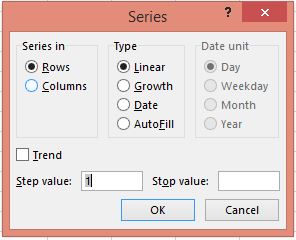
In our previous post " Fill Series in Excel " we have seen all the details about " Fill Series " options. Let us see the examples of each option in this blog post. Fill Series: Linear Trend In this section we will see how we can fill series with linear trend using fill series. Suppose, we want to fill series 1, 2, 3…. upto 20 in a column.  1. Enter value 1 in any cell and select this cell. Go to “Home Tab” then select “Editing Group” then select “Fill Command” then select “Series option” and Input the values as mentioned below in Series Dialog Box:      a. Series in: Column      b. Type: Linear      c. Step Value: 1      d. Stop Value: 20 2. Once you click on “OK” button then you will see a desired series on your screen. Fill Series: Growth Trend In this section we will see how we can fill series with Growth Trend using fill series. Suppose, we want to fill series for which the series pattern will be like: 2, 4, 8…. upto 2...

Fill Series in Excel

Image
In our previous post “ Fill Up, Down, Right & Left in Excel ”, we have seen fill up, fill down, fill right and fill left commands in excel. Now, in this post we will see “Fill Series” command in excel. The basic difference between “ fill up, fill down, fill right and fill left commands ” and “Fill Series” command in excel is that: “fill up, fill down, fill right and fill left commands” fills the data as it is. It is similar to copy the data from one cell to selected cells. But “Fill Series” command help us to fill the data in series. It means it helps us to fill the data in certain pattern. Also we can customize the series in which we want to fill the data with the help of options available in this command. Select “Home Tab” then select “Editing Group” then select “Fill Command” (Image is given below for your reference) Once we click on “Fill” command, various fill options will display on our screen. Select “Series” option from it. Once we click on “Series” option then we will ge...

Fill Up, Down, Right & Left in Excel

Image
Excel has many great tricks which can help us to save our time while working on big data. In this blog post we are going to see one of those tricks where we can fill the data to the upwards of the selected cells, to the downwards of the selected cells, to the right of the selected cells and to the left of the selected cells. There are many situations where we may need to copy the data from selected cell to the upward, downward, left and right cells. But how can we do so?? In excel we can do so with the help of “Fill” command. This command we can found in: Home Tab --> Editing Group --> Fill Command. Let’s take an example. We have inserted a text “Tejraj” in a cell “D5”. Now we will see how to fill this text from cell D5 to Up, Down, Right & Left. Fill Down: 1. Let’s assume that we have to fill the data from cells D5 to D10. For this, select the Cell Range D5:D10. Keep in mind that the data from 1st cell of the selected Cell Range will fill down in entire selection. 2. Select ...