Posts

Showing posts with the label Data

Merge data from Duplicate Rows into a Single Cell in Excel.
Image
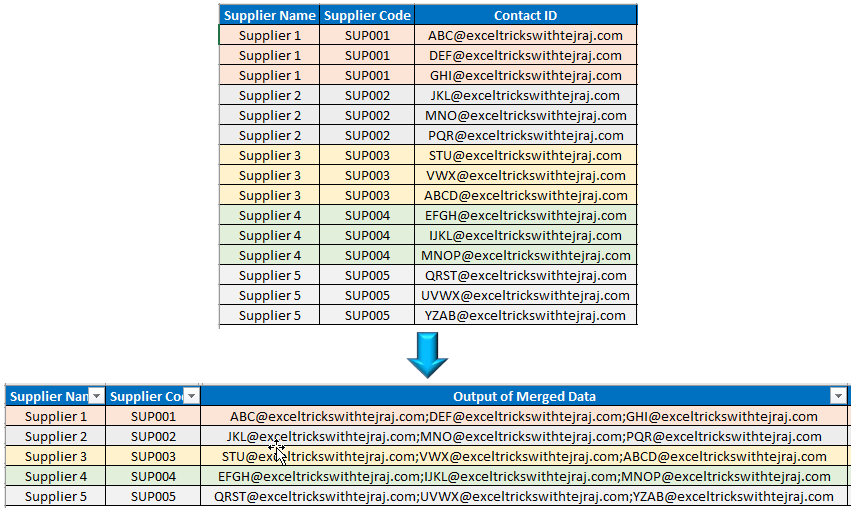
In this blogpost, we will learn to merge data from duplicate rows into a single cell in excel. Many times, we may face a situation where we have duplicate entries in rows,  and we want to merge the data from these duplicate entries into single cell. This post is perfect solution for similar problems. Let us understand this solution with simple example. Let us assume that we have a supplier database in which we have multiple contacts listed for same supplier in multiple rows (as shown in below image). In this database, Supplier 1 with unique supplier code has 03 different Contact IDs listed in 03 different rows and same scenario is with Supplier 2, Supplier 3, Supplier 4 and Supplier 5. Now we want to merge these multiple Contacts IDs for respective supplier in a single cell separated by semicolon (;). To merge data from multiple rows into a single cell in excel, follow below simple steps: Before following the below steps make sure “Supplier Code” column is sorted (Sort Type is...

Restrict Cells to Accept Only Whole Numbers Using Data Validation

Image
In this blog post we will learn to restrict the cells to accept only Whole Numbers with the help of “Data Validation” functionality in excel. For example, we want to ask user to enter only Whole Numbers which are between values 5 to 10 and if user enters any other value which is beyond this range then the cell should not accept it. For this we will use “Data Validation” functionality in excel. “Data Validation” can be found in “Data” tab under “Data Tools” group. Now let’s see how we can use this “Data Validation” command to restrict cell to accept only Whole Numbers: 1. Select the cells in which we wish to restrict the Whole Numbers. In this case we want to restrict Whole Numbers in cell “B1”. 2. Click on Data Validation command under “Data Tools” group which will appear 03 further options and out of these 03 options again select “Data Validation”. 3. Once we click on “Data Validation” command, one dialog box named as “Data Validation” will appear on screen. 4. Under this dialog box, ...

Restrict Cells to Accept Only Decimal Values Using Data Validation

Image
In this blog post we will learn to restrict the cells to accept only decimal values with the help of “Data Validation” functionality in excel. For example, we want to ask user to enter only decimal values which are less than 5.00 in cell. If user enters any other value which is greater than 5.00 then the cell should not accept it. For this we will use “Data Validation” functionality in excel. “Data Validation” can be found in “Data” tab under “Data Tools” group. Now let’s see how we can use this “Data Validation” command to restrict cell to accept only decimal values: 1. Select the cells in which we wish to restrict the decimal values. In this case we want to restrict decimal values in cell “B1”. 2. Click on Data Validation command under “Data Tools” group which will appear 03 further options and out of these 03 options again select “Data Validation”. 3. Once we click on “Data Validation” command, one dialog box named as “Data Validation” will appear on screen. 4. Under this dialog box...

How to Remove Duplicate Entries from Multiple Columns in Excel

Image
In our last blog post, we have learned to remove duplicates entries in excel . In this blog post, we will go little advanced to remove the duplicate entries from multiple columns. Removing Duplicates Entries from 02 Columns: We will learn to remove duplicate entries from the data as shown in below image. The entries which are duplicate in both the “Fruits” column and “Price/Kg” column are highlighted with different colors. To remove duplicate entries in these 02 columns, follow the steps provided below: 1. Select the data from which we want to remove the duplicates. 2. Go to “Data” tab and under “Data Tools” we can find command named as “Remove Duplicates” as highlighted in below image. 3. Once we click on “Remove Duplicate” command, one dialog box with same name “Remove Duplicate” will appear on our excel screen. 4. If we check the checkbox for “My Data has headers” then the header row from our selection will be excluded automatically and under “Columns” section we will see the name o...