Posts

Showing posts with the label Day

MONTH Function in Excel
Image
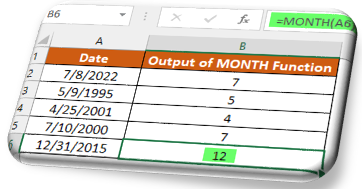
In this blog post we will learn about MONTH function in excel. MONTH function returns month of the year from the selected DATE. Where to find MONTH function on Excel Screen: MONTH function can be found under “Date & Time" Function category under “Formulas” tab and under “Function Library” group as shown in below image: Once we click on “Date & Time” category, we can see list of various Date & Time Functions available in excel. MONTH function is highlighted in blue in below image. Once we click on MONTH option as highlighted above, we will get the function argument dialog box as shown in below image: Syntax of MONTH Function: The Syntax of MONTH function is as below: =MONTH(serial_number) Arguments of MONTH Function: To use the MONTH function, we have to provide only one argument: Serial_number : In this argument we have to enter a date from which we want to identify month. Need of MONTH Function: Now, the question is why we have to use this MONTH function? We will unde...
DAY Function in Excel

Image
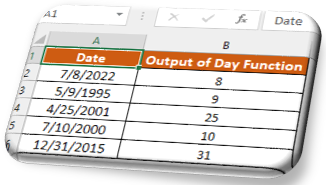
In this blog post we will learn about DAY function in excel.  DAY function returns day of the month from the selected DATE.  Where to find DAY function on Excel Screen: DAY function can be found under “Date & Time Function” category under “Formulas” tab and under “Function Library” group as shown in below image: Once we click on “Date & Time” category, we can see list of various Date & Time Functions available in excel. DAY function is highlighted in blue in below image. Once we click on DAY option as highlighted above, we will get the function argument dialog box as shown in below image: Syntax of DAY Function: The Syntax of DAY function is as below: =DAY(serial_number) Arguments of DAY Function: To use the DAY function, we have to provide only one argument: Serial_number : In this argument we have to enter a date from which we want to identify date. Why to use DAY Function Now, the question is why we have to use this DAY function? We will understand need of DAY f...

Fill Series in Excel: Examples

Image
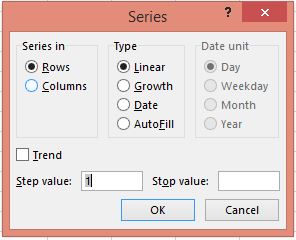
In our previous post " Fill Series in Excel " we have seen all the details about " Fill Series " options. Let us see the examples of each option in this blog post. Fill Series: Linear Trend In this section we will see how we can fill series with linear trend using fill series. Suppose, we want to fill series 1, 2, 3…. upto 20 in a column.  1. Enter value 1 in any cell and select this cell. Go to “Home Tab” then select “Editing Group” then select “Fill Command” then select “Series option” and Input the values as mentioned below in Series Dialog Box:      a. Series in: Column      b. Type: Linear      c. Step Value: 1      d. Stop Value: 20 2. Once you click on “OK” button then you will see a desired series on your screen. Fill Series: Growth Trend In this section we will see how we can fill series with Growth Trend using fill series. Suppose, we want to fill series for which the series pattern will be like: 2, 4, 8…. upto 2...

Fill Series in Excel

Image
In our previous post “ Fill Up, Down, Right & Left in Excel ”, we have seen fill up, fill down, fill right and fill left commands in excel. Now, in this post we will see “Fill Series” command in excel. The basic difference between “ fill up, fill down, fill right and fill left commands ” and “Fill Series” command in excel is that: “fill up, fill down, fill right and fill left commands” fills the data as it is. It is similar to copy the data from one cell to selected cells. But “Fill Series” command help us to fill the data in series. It means it helps us to fill the data in certain pattern. Also we can customize the series in which we want to fill the data with the help of options available in this command. Select “Home Tab” then select “Editing Group” then select “Fill Command” (Image is given below for your reference) Once we click on “Fill” command, various fill options will display on our screen. Select “Series” option from it. Once we click on “Series” option then we will ge...