Posts

Showing posts with the label Multiple

PRODUCT Function in Excel
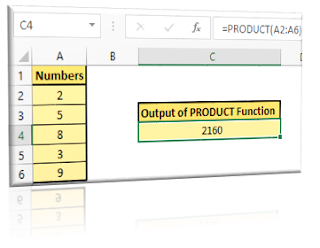
Image
In this blog post we will learn about PRODUCT function in excel. PRODUCT function can be used when we want to multiply multiple values provided in the arguments. Importance of PRODUCT Function? In mathematics, PRODUCT of a number is calculated by multiplying all the input numbers. So in case we want to multiply the numbers then we can use the PRODUCT function. Usage of this function is more effective whenever we want to multiply huge numbers together. Where to find PRODUCT function on Excel Screen: PRODUCT function can be found under “Math & Trig” function category under “Formulas” tab and under “Function Library” group as shown in below image: Once we click on “Math & Trig” function category, we can see list of various Math & Trig functions available in excel. PRODUCT function is highlighted in blue in below image. Once we click on PRODUCT option as highlighted above, we will get the function argument dialog box as shown in below image. Syntax of PRODUCT Function: The Synt...

Insert Multiple Rows in Excel Based On Cell Value

Image
In this blog post we will learn to Insert Multiple Rows in excel based on cell value with the help of VBA Code. For this we have prepared dummy data as shown in below image. In this data we have listed few “Products”, their “Quantities” and their “Unit Price”. Now we want to insert multiple rows based on their “Quantities”. For example, “Product 1” has 04 quantities so we have to add 04 rows below the Product 1, “Product 2” has 02 quantities so we have to add 02 rows below the Product 2 and so on. To avoid wasting our time by manually inserting rows one by one, we can use VBA code which will do our work within seconds. To do this, just follow the below steps: 1. Add “Developer Tab” on the Ribbon if it is not already added. If you are not aware about how to add Developer Tab on the Ribbon then click here . Once added on the Ribbon, “Developer Tab” will looks like as highlighted with red in below image. 2. Now, click on the “Visual Basic” command as highlighted in below image. 3. Once ...

How to Remove Duplicate Entries from Multiple Columns in Excel

Image
In our last blog post, we have learned to remove duplicates entries in excel . In this blog post, we will go little advanced to remove the duplicate entries from multiple columns. Removing Duplicates Entries from 02 Columns: We will learn to remove duplicate entries from the data as shown in below image. The entries which are duplicate in both the “Fruits” column and “Price/Kg” column are highlighted with different colors. To remove duplicate entries in these 02 columns, follow the steps provided below: 1. Select the data from which we want to remove the duplicates. 2. Go to “Data” tab and under “Data Tools” we can find command named as “Remove Duplicates” as highlighted in below image. 3. Once we click on “Remove Duplicate” command, one dialog box with same name “Remove Duplicate” will appear on our excel screen. 4. If we check the checkbox for “My Data has headers” then the header row from our selection will be excluded automatically and under “Columns” section we will see the name o...