Posts

Showing posts with the label area

PI Function in Excel

Image
In this blog post we will learn to about PI function in excel. PI function will return value of Pi which is mathematical constant which has value of 3.14. The PI function in excel return the value of Pi accurate to 15 digits. Importance of PI Function? Pi can be used to solve many mathematical problems. So if you are thinking to solve some mathematical problems for example to “calculate area of circle” or to “calculate the circumference of circle” (these are just few examples) then you can use the PI function effectively. Where to find PI function on Excel Screen: PI function can be found under “Math & Trig” function category under “Formulas” tab and under “Function Library” group as shown in below image: Once we click on “Math & Trig” function category, we can see list of various Math & Trig functions available in excel. PI function is highlighted in blue in below image. Once we click on PI option as highlighted above, we will get the function argument dialog box as shown ...
Area Chart in Excel

Image
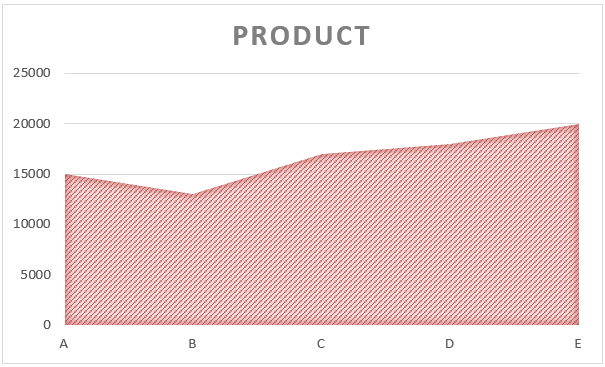
In this blog post we will learn to create “Area Chart in Excel”. We will take simple example to create “Area Chart in Excel”. We have listed 05 products: Product A, Product B, Product C, Product D and Product E along with their costs. Now we will see how we can convert this data into “Area Chart” for better data visualization. Just follow below steps: 1. Select the above data which we want to convert into Area Chart. 2. Go to “Insert” Tab, Select Insert Area Chart command under “Charts” group. 3. We will get further options for selecting Area Chart. Out of these appeared option we have to select “Area” option under “2-D Area” as shown in below image. 4. We can see that “Area Chart” is now created for our selected data. Changing Chart Style: To change the formatting of our Area Chart, click on the existing “Area Chart” and this will appear two additional tabs on our Ribbon. These tabs are: 1. Design Tab 2. Format Tab Once we click on the “Design” tab, we can see various Chart Styles for...

Pivot Table Slicer

Image
In our last blog post we have seen how we can create Pivot Table in Excel . If you have not yet aware of how to create Pivot Table in Excel you can click here and then continue reading this post. Let’s assume we are creating Pivot Table for data as shown in below image. Slicers are very effective while creating dashboards in excel. We can say that Slicers are “Pictorial Filters”. While we are creating Pivot Table, we are getting 04 Pivot Table areas as shown in below image. Slicers are related to “Filters” area.  Let’s create Pivot Table to summarize regional sales data. 1. Drag “Region” field into “Rows” area 2. Drag “Total Sales INR” field into “Values” area 3. Drag “Year” field into “Filters” area. This will create Pivot Table into as shown in below image. One important thing to note here is that filter is now created for field ‘”Year”. If we want to change our summary for any specific year then we can select respective year in that filter.  For example,  If want...