Posts

Showing posts with the label Cell Range

SUMIFS Function in Excel

Image
In this blog post we will learn to about SUMIFS function in excel. In our previous blog post we learned about SUMIF function in which we learned to calculate the SUM based on certain criteria or condition. In this blog post we will learn to calculate the sum based on set of criteria’s or conditions, with the help of SUMIFS function. Where to find SUMIFS function on Excel Screen: SUMIFS function can be found under “Math & Trig” function category under “Formulas” tab and under “Function Library” group as shown in below image: Once we click on “Math & Trig” function category, we can see list of various Math & Trig functions available in excel. SUMIFS function is highlighted in blue in below image. Once we click on SUMIFS option as highlighted above, we will get the function argument dialog box as shown in below image. Syntax of SUMIFS Function: The Syntax of SUMIFS function is as below: =SUMIFS(sum_range, cirteria_range1, cirteria1, …) Arguments of SUMIFS Function: SUMIFS fun...
OFFSET Function in Excel

Image
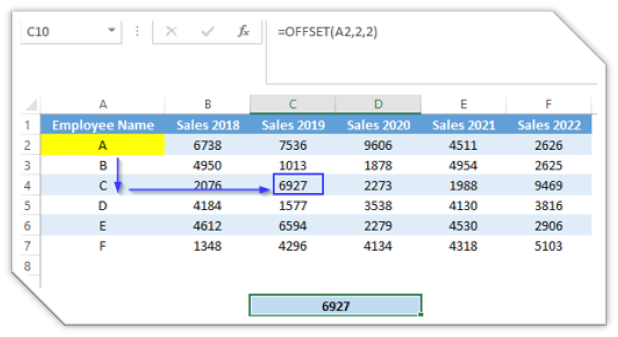
In this blog post we will learn to about OFFSET function in excel. OFFSET function will give us a reference of a cell , or a cell range based on provided number of rows and number of columns. Basically, OFFSET function will shift the original reference to up, down, left, or right based on provided number of rows and columns and gives us new reference. Where to find OFFSET function on Excel Screen: OFFSET function can be found under “Lookup & Reference” function category under “Formulas” tab and under “Function Library” group as shown in below image: Once we click on “Lookup & Reference” function category, we can see list of various Lookup & Reference functions available in excel. OFFSET function is highlighted in blue in below image. Once we click on OFFSET option as highlighted above, we will get the function argument dialog box as shown in below image: Syntax of OFFSET Function: The Syntax of OFFSET function is as below: =OFFSET(reference, rows, cols, [height], [width]) ...

INDEX Function in Excel

Image
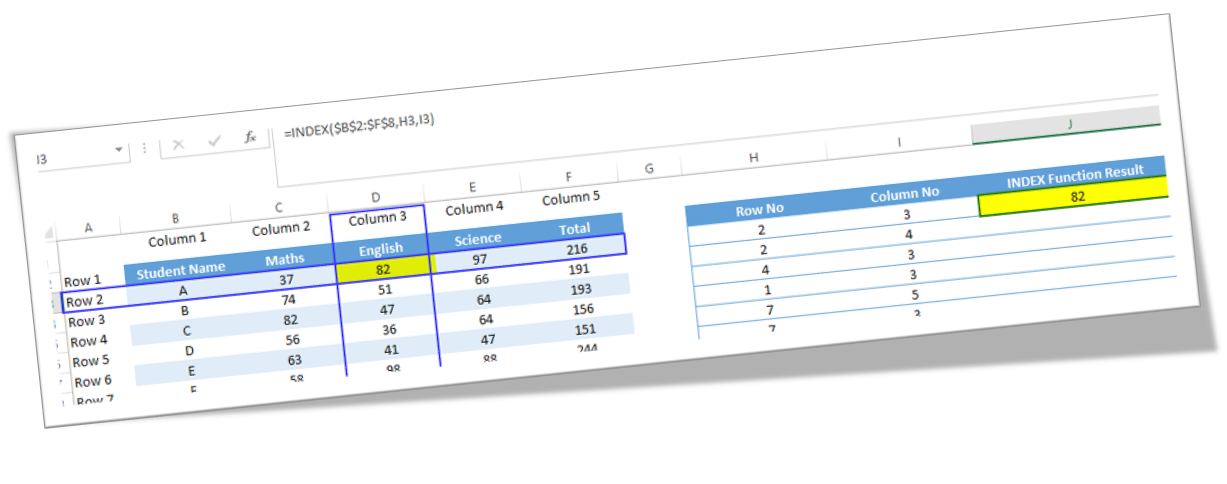
In this blog post we will learn to about INDEX function in excel. We can use INDEX function to find value which is present at the intersection of provided row number and column number in g given cell range . For example, we want to find our which value is present at the intersection point of row 3 and column 4 in a given table then applying INDEX function is a perfect solution. Where to find INDEX function on Excel Screen: INDEX function can be found under “Lookup & Reference” function category under “Formulas” tab and under “Function Library” group as shown in below image: Once we click on “Lookup & Reference” function category, we can see list of various Lookup & Reference functions available in excel. INDEX function is highlighted in blue in below image. Once we click on INDEX option as highlighted above, we will get the select argument dialog box as shown in below image. As this function has multiple argument lists, we must select one of the two argument lists appearing...

MATCH Function in Excel

Image
In this blog post we will learn to about MATCH function in excel. We can use MATCH function to find relative position of a provided item in a cell range . For example, we have listed name of few countries in one column, and we want to find out the relative position of specific country in that cell range then we can do so by using MATCH function. Where to find MATCH function on Excel Screen: MATCH function can be found under “Lookup & Reference” function category under “Formulas” tab and under “Function Library” group as shown in below image: Once we click on “Lookup & Reference” function category, we can see list of various Lookup & Reference functions available in excel. MATCH function is highlighted in blue in below image. Once we click on MATCH option as highlighted above, we will get the function argument dialog box as shown in below image: Syntax of MATCH Function: The Syntax of MATCH function is as below: =MATCH(lookup_value, lookup_array, [match_type]) Arguments of ...

TRANSPOSE Function in Excel

Image
In this blog post we will learn to about TRANSPOSE function in excel. We can use TRANSPOSE function to convert vertical cell range into horizontal cell range and horizontal cell range into vertical cell range . Where to find TRANSPOSE function on Excel Screen: TRANSPOSE function can be found under “Lookup & Reference” function category under “Formulas” tab and under “Function Library” group as shown in below image: Once we click on “Lookup & Reference” function category, we can see list of various Lookup & Reference functions available in excel. TRANSPOSE function is highlighted in blue in below image. Once we click on TRANSPOSE option as highlighted above, we will get the function argument dialog box as shown in below image: Syntax of TRANSPOSE Function: The Syntax of TRANSPOSE function is as below: =TRANSPOSE(array) Arguments of TRANSPOSE Function: TRANSPOSE function takes only one argument. array : In this argument we have to select cell range which we want to conver...