Posts

Showing posts with the label Insert

Inserting Image into Shapes in Excel

Image
We have already learned about Inserting Shapes as well as Inserting Images in excel. Now, in this blog post we will learn about inserting images in shapes in excel. We will learn to insert an image (which is logo of our website “ Excel Tricks with Tejraj ”) into various shapes. First we will insert the shape in excel and then we will insert the logo into inserted shape. Insert Image in Oval Shape: First, click on “Insert” tab and then click on “Shapes” command. Once we click on “Shapes” command, we can see various shapes available in excel. Out of these, you can select any shape as per your choice. In this case, we want to select the “Oval” shape. If you are not aware about the names of these shapes, then you can just place the mouse cursor on any shape which will automatically show the name of that shape. Once we click on the “Oval” shape, the shape of mouse cursor will change from doctor symbol to plus symbol. As soon as the mouse cursor symbol changes to plus symbol, we can draw ...

Insert Multiple Rows in Excel Based On Cell Value

Image
In this blog post we will learn to Insert Multiple Rows in excel based on cell value with the help of VBA Code. For this we have prepared dummy data as shown in below image. In this data we have listed few “Products”, their “Quantities” and their “Unit Price”. Now we want to insert multiple rows based on their “Quantities”. For example, “Product 1” has 04 quantities so we have to add 04 rows below the Product 1, “Product 2” has 02 quantities so we have to add 02 rows below the Product 2 and so on. To avoid wasting our time by manually inserting rows one by one, we can use VBA code which will do our work within seconds. To do this, just follow the below steps: 1. Add “Developer Tab” on the Ribbon if it is not already added. If you are not aware about how to add Developer Tab on the Ribbon then click here . Once added on the Ribbon, “Developer Tab” will looks like as highlighted with red in below image. 2. Now, click on the “Visual Basic” command as highlighted in below image. 3. Once ...

Protecting Workbook Structure in Excel

Image
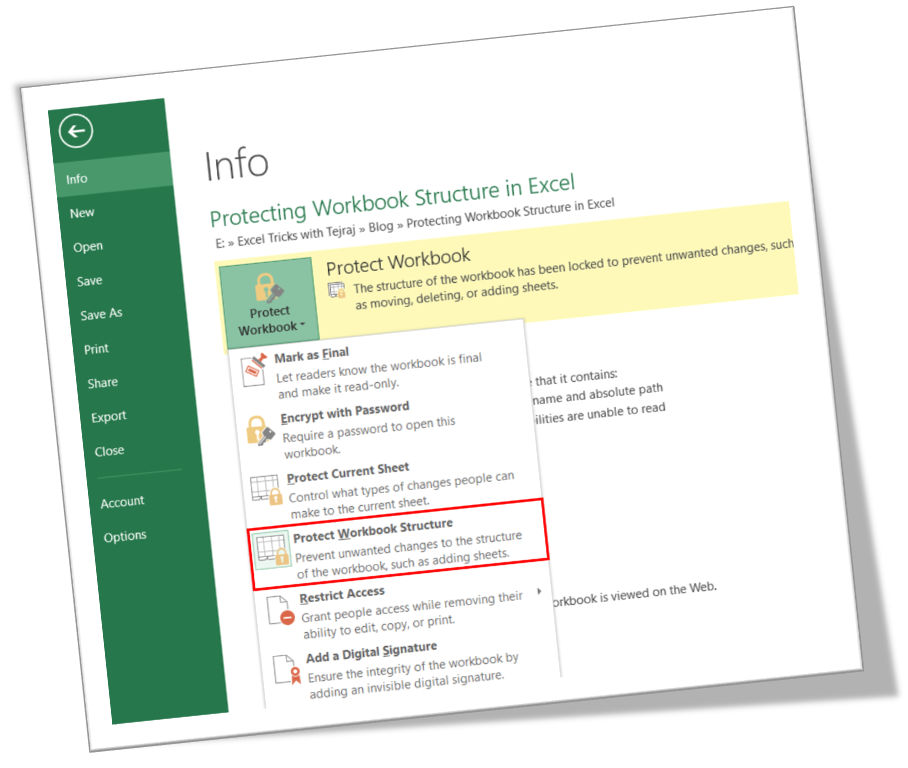
In this blog post we will learn to protect the workbook structure in excel. First of all let’s understand what it means by protecting workbook structure. Once we protect the workbook structure: 1. User cannot insert new worksheet . 2. User cannot delete existing worksheet. 3. User cannot rename worksheet . 4. User cannot hide & unhide the worksheet . 5. User cannot change the tab color . 6. User cannot copy the existing worksheet . 7. User cannot move the existing worksheet . Now, we will see how to protect worksheet structure in excel: 1. Click on “File” option on Ribbon. 2. Click on “Info” option as highlighted in below image. 3. Click on “Protect Workbook” option as highlighted in below image. 4. It will appear further options under “Protect Workbook”. Out of these options we have to click on “Protect Workbook Structure”. 5. Once we click on “Protect Workbook Structure” option, one dialog box will appear on our excel screen as shown in below image. Under this we have to check th...

Insert Comment in Excel

Image
In this blog post we will learn to “Insert Comment in Excel”. To explain this topic we have prepared raw data where we are collecting information of few students. The information which we are collecting is: 1. Name of Student 2. Age 3. Gender 4. Date of Birth But there might be chance that if we share this excel sheet and ask each student to fill up their data by their own then the completed sheet may get mess us due to non-uniformity. This is one example how student may end up filling the data. There is no uniformity at all in this data. Some students have entered their gender with just initials while others have entered the full word. Same thing happened with DOB as the date format entered in last column of table is not uniform. To maintain the uniformity in the database we must provide some instructions about how to fill the information in this table. For this we can insert comments for the header cells (as shown in below image) which will provide instructions about how to fill up ...