Posts

Showing posts with the label Month

MONTH Function in Excel
Image
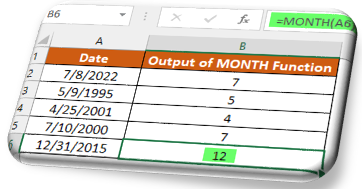
In this blog post we will learn about MONTH function in excel. MONTH function returns month of the year from the selected DATE. Where to find MONTH function on Excel Screen: MONTH function can be found under “Date & Time" Function category under “Formulas” tab and under “Function Library” group as shown in below image: Once we click on “Date & Time” category, we can see list of various Date & Time Functions available in excel. MONTH function is highlighted in blue in below image. Once we click on MONTH option as highlighted above, we will get the function argument dialog box as shown in below image: Syntax of MONTH Function: The Syntax of MONTH function is as below: =MONTH(serial_number) Arguments of MONTH Function: To use the MONTH function, we have to provide only one argument: Serial_number : In this argument we have to enter a date from which we want to identify month. Need of MONTH Function: Now, the question is why we have to use this MONTH function? We will unde...

DATEDIF Function in Excel

Image
In this blog post we will learn about “DATEDIF” function in excel. In excel DATEDIF function is used to calculate the difference between two dates in the form of days, moths and years. Syntax of “DATEDIF Function”: The syntax of DATEDIF function in excel is as below: =DATEDIF(Start Date, End Date, Unit) Arguments of “DATEDIF Function”: There are total 03 arguments required to get desired result with this function. Start Date : This is the 1st date or the starting date from the period from which we want to calculate the difference between dates. End Date : This is the 2nd date or the ending date from the period from which we want to calculate the difference between dates. Unit : The output of DATEDIF function will depend on this argument. There are total 06 units available for this arguments as listed below. We have to enter this argument in between two double inverted commas ex: “Unit”. “Y”: With this unit, DATEDIF function will return number of complete years between Start Date and En...

Date Filter in Excel

Image
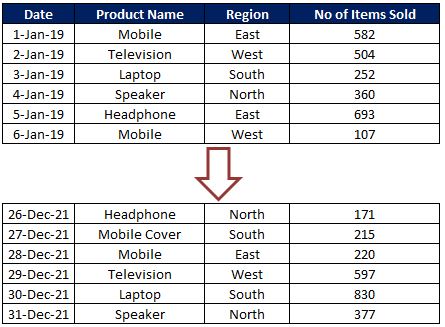
To explain “Date Filter“ in detail, we have a dummy data of some electronics products sold in 04 regions East, West, South and North from 1st Jan 2019 to 31st Dec 2021. Date filter can only be applied for the column which contains Date values. In our case we can apply Date filter for the Date column. Click on the drop down button which is available on header cell “Date” and click on “Date Filters” option as highlighted in below image. We can filter data available in this Date column based on below criteria’s: So let us now see each of the criteria in detail.  Please make a note that we will consider today’s date as “13th September 2020” throughout this post. So all the output results shown in this blog post will depend on this date. Equals:  This option will help us to filter the dates exactly equal to our input date. For example if we want to filter the data for date 1-Jan-20 then we will provide our “equals” criteria as shown in below image. This will provide us the output a...