Customize SmartArt Graphic in Excel
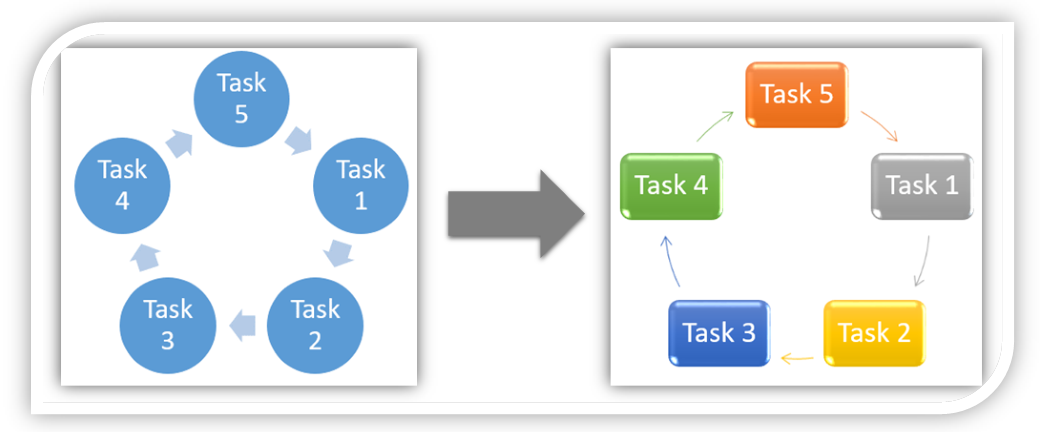
In this blog post we will learn to customize SmartArt Graphic in excel. Previously we have seen to insert SmartArt Graphic in excel but in this post we will learn to customize them to give beautiful effects. If you are not familiar about how to insert SmartArt Graphic in excel then click here before reading this blog post. We will take same example which we have taken in our previous blog post about inserting SmartArt Graphic in excel. In that blog post, we have inserted below SmartArt Graphic. Where to find commands to Customize SmartArt Graphic on Excel Screen: The main thing we should know is where we can find commands to customize SmartArt Graphics on our excel screen ? For this we have to click on the SmartArt Graphic which we have created. Once we click on this SmartArt Graphic, two additional tabs as listed below will get enabled on Ribbon . 1. Design Tab 2. Format Tab We will use these two tabs to Customize SmartArt Graphic in excel. Note : These two tabs will get enabled if...
