Posts

Showing posts with the label Lenght

Calculate Length of Text String in Excel
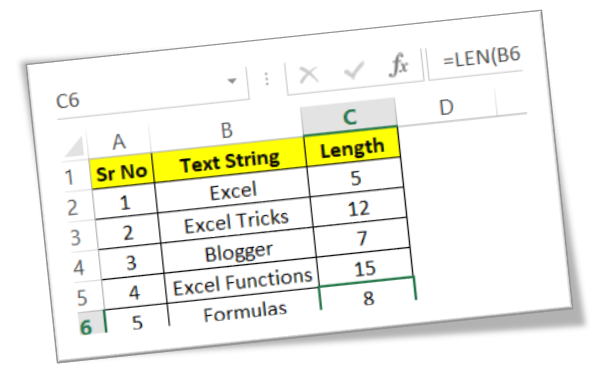
Image
In this blog post we will learn to calculate length of text string in excel. To calculate length of text string we will use “LEN” function in excel. Where to find LEN function on Excel Screen: LEN function can be found under “Text Function” category under “Formula Tab” as shown in below image: Once we click on “Text” category, we can see list of various Text Functions available in excel. “LEN” function is highlighted in red in below image. Once we click on LEN option as highlighted above, we will get the function argument dialog box as shown in below image: Syntax of LEN Function: The Syntax of LEN function is as below: =LEN(text) Arguments of LEN Function: To use the LEN function we have to use only one argument: Text : This is only one and mandatory argument. We have to select the text for which we have to calculate text length. Example of LEN Function: Let’s learn about using this function with the help of simple example. We have listed text strings in column B as shown in below ima...

Restrict Text Length using Data Validation

Image
In this blog post we will learn to restrict text length with the help of “Data Validation” functionality in excel. For example, we want to ask user to enter Postal Code in the excel sheet. In India postal code is always with 06 digits. We want user to always enter 06 digits in this field so that we will get correct input data from user. For this we will use “Data Validation” functionality in excel. “Data Validation” can be found in “Data” tab under “Data Tools” group. Now let’s see how we can use this “Data Validation” command to restrict text length: 1. Select the cells in which we wish to restrict the cell length. In this case we want to restrict text length in cell “B2”. 2. Click on Data Validation command under “Data Tools” group which will appear 03 further options and out of these 03 options again select “Data Validation”. 3. Once we click on “Data Validation” command, one dialog box named as “Data Validation” will appear on screen. 4. Under this dialog box, click on “Settings” t...