Posts

Showing posts with the label Object

Insert Object in Excel
Image
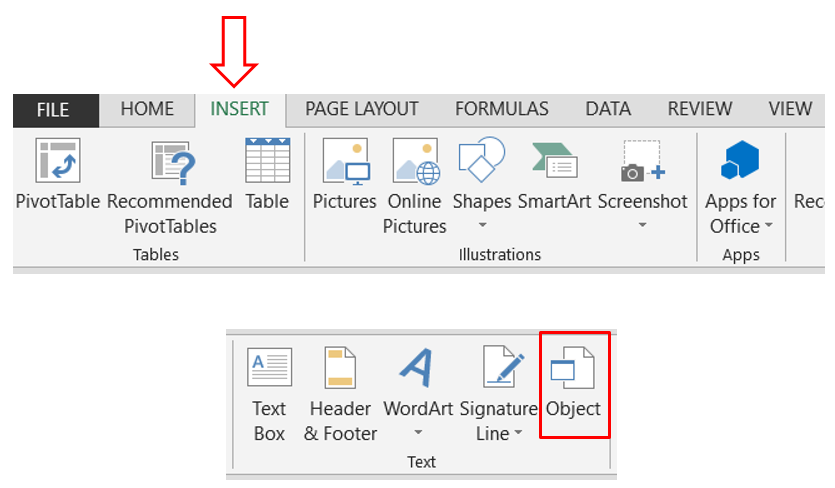
Many time we may need to insert word file, pdf file or presentation in excel. But many people don’t know how to add these pdf files, word files or PPT files in excel. For those people we will learn to insert objects in excel through this blog post. 1. For this we have to go to “Insert” tab and under “Text” group and click on the command “Object” 2. Once we click on the “Object” command, one dialog box names as “Object” will appear on excel screen. 3. Click on the “Create from File” tab as highlighted in below image. 4. Click on “Browse” button, which will provide the option to select the file which we want to insert in excel. 5. Once we select the file, we can see the file name along with its path will reflect in dialog box as shown in below image. 6. Also we have to check the checkbox for “Display as icon” as shown in below image. 7. Once we click on “OK” button, selected file is now inserted as an object in our excel file. To Change the Caption of Inserted Object: We can now insert o...

GoTo Special in Excel: Part 2

Image
In our previous blog post we have seen few options from "GoTo Special" dialog box in Excel (Click here to read about GoTo Special in Excel Part 1 ). In this blog post we will see remaining options. Column differences: This option will help us to select the cell values which are different that selected  cell  value in respective column. 1. We have listed few numbers in a column as shown in below image. Now we have selected entire range and the  cell  value which is selected in this cell range is from cell address “B2” (We can see the cell address in Name Box and value from this cell address in Formula Bar ). 2. Select option “Column differences” in “GoTo Special” dialog box and click on “OK” button. 3. As a result we can see that all the cell values which are different that cell value in cell “B2” will get selected. Precedents (Direct only, All levels): This option will help us to select the all the cells which are involved in the formula applied in currentl...

GoTo Special in Excel: Part 1

Image
Previously we have learned about “ Find & Select Commands ” in excel ( Click here to read more on this). In that post we have already seen various methods to get “GoTo Special” dialog box. This “GoTo Special” dialog box will look like as shown in below image. We will learn how to use all the options which are available in this "Go To Special" dialog box. These options are: 1. Comments 2. Constants (Numbers, Text, Logicals, Errors) 3. Formulas (Numbers, Text, Logicals, Errors) 4. Blanks 5. Current region 6. Current Array 7. Objects 8. Row difference 9. Column differences 10. Precedents (Direct only, All levels) 11. Dependents (Direct only, All levels) 12. Last Cell 13. Visible cells only 14. Conditional Formats (All, Same) 15. Data Validation (All, Same) Comments: This option will help us to select all the comments from selected sheet. 1. Let’s say we have inserted few comments in our excel sheet as shown in below image. 2. Select option “Comments” in “GoTo Special” dialo...