Posts

Showing posts with the label Drop-Down

MATCH Function in Excel

Image
In this blog post we will learn to about MATCH function in excel. We can use MATCH function to find relative position of a provided item in a cell range . For example, we have listed name of few countries in one column, and we want to find out the relative position of specific country in that cell range then we can do so by using MATCH function. Where to find MATCH function on Excel Screen: MATCH function can be found under “Lookup & Reference” function category under “Formulas” tab and under “Function Library” group as shown in below image: Once we click on “Lookup & Reference” function category, we can see list of various Lookup & Reference functions available in excel. MATCH function is highlighted in blue in below image. Once we click on MATCH option as highlighted above, we will get the function argument dialog box as shown in below image: Syntax of MATCH Function: The Syntax of MATCH function is as below: =MATCH(lookup_value, lookup_array, [match_type]) Arguments of ...
Applying VLOOKUP in Excel

Image
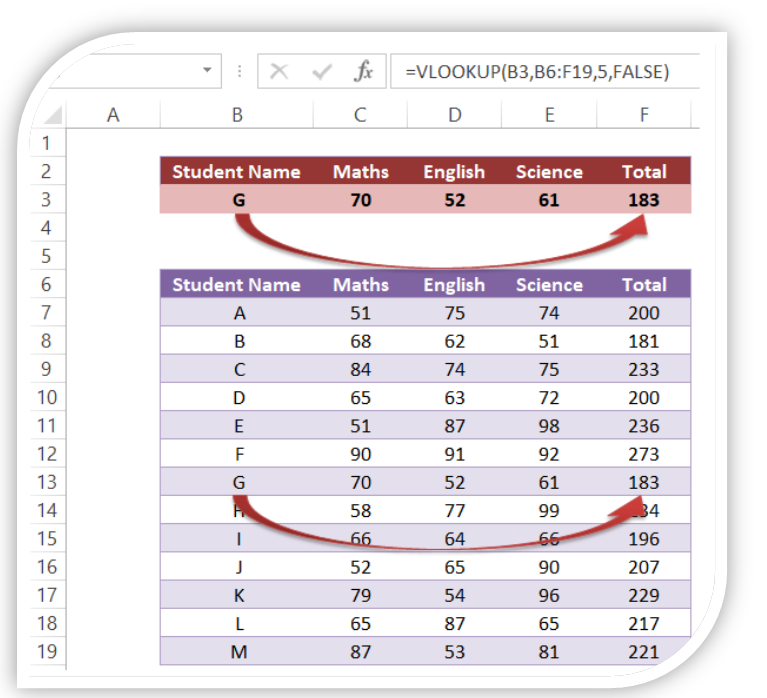
In this blog post we will see how we can apply VLOOKUP in excel. For this we have prepared a dummy data as shown in the below image. This data is divided into two groups. Blue Highlighted Data : This data contains Student Names and marks obtained by each student in the subject Maths, English and Science. In the last column we have calculated total marks obtained by each student. Red Highlighted Data : This data contains similar headers as that of Blue Highlighted data. We will apply VLOOKUP in these cells. Methods to find VLOOKUP Function on Excel Screen: We can find VLOOKUP function using two different methods. In this first method , VLOOKUP function can be found in “Lookup & Reference” which we can find in “Function Library” group under “Formulas” tab (Below screenshot for your reference). Once we click on this “VLOOKUP”, one dialog box named as “Function Arguments” will appear on excel screen. There are total 04 arguments available for this VLOOKUP function. Once we enter all th...

Creating Dependent Drop Down List in Excel

Image
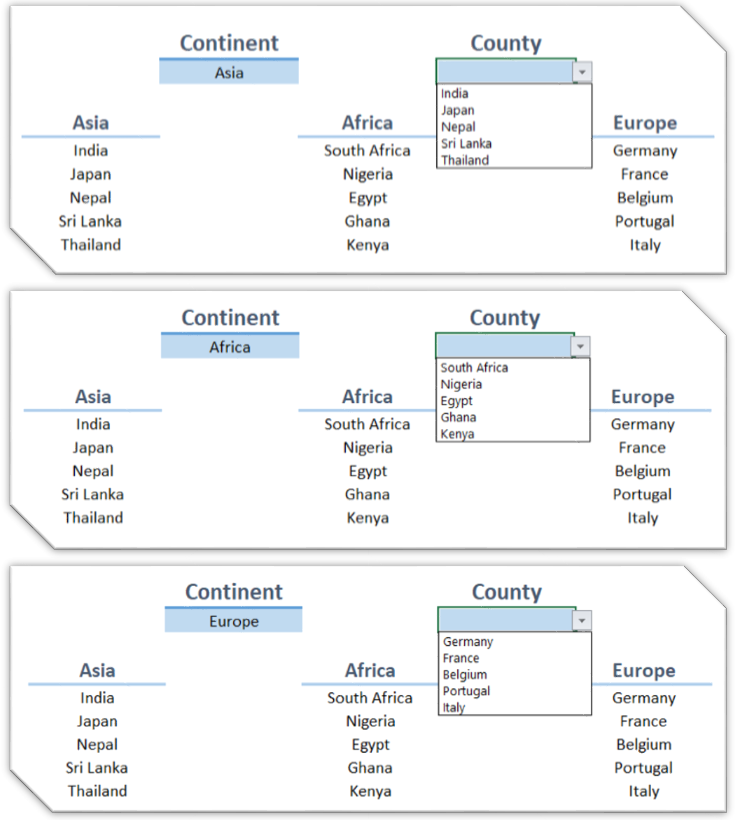
Previously we have learned to create “ Drop Down List ” in excel. In this blog post, we will go little advanced and learn to create “Dependent Drop Down” in Excel. It means, we have to create 02 Drop Down Lists in excel and out of these two, the second Drop Down list will change based on the selection made in the first Drop Down List . For this, we have listed few countries from three different continents. These three continents are “Asia”, “Africa” and “Europe”. So our first drop down list will be for selecting Continents and the second drop down list will be for selecting Counties from respective continent. 1st Drop Down List : It is for selecting Continent 2nd Drop Down List : It is for selecting Countries from respective Continent. We have to use “Define Name” functionality in excel for this entire process. This “Define Name” command we can find in “Formulas” tab under “Defined Names” group. Select all the countries listed under continent ‘Asia’ and click on command “Define Nam...

Creating Drop Down List in Excel

Image
Whenever we want to limit the values which we are going to enter in cells, we can use drop down list. With this list, we can enter cell values which are present in the drop down list only. Excel will not accept any other values which are not included in the drop down list.  Following steps will give you cleat idea about creating your own drop down list: 1. Select a cell where we want to create a drop down list (in this example we have selected cell “E1”). 2. List down the values to be included in drop down list anywhere in the excel sheet (in this example we have listed these values in cell range “A1:A5”) 3. Select Data validation command which is available in Data Tab under Data Tools group. 4. Data Validation window will open as shown in below image. Now we have to select validation criteria in Settings tab. Under “Allow” Select “List” option. 5. Under “Source”, select the values which are to be included in drop down list (in this case ...