Posts

Showing posts with the label Custom

Deleting Custom List In Excel
Image
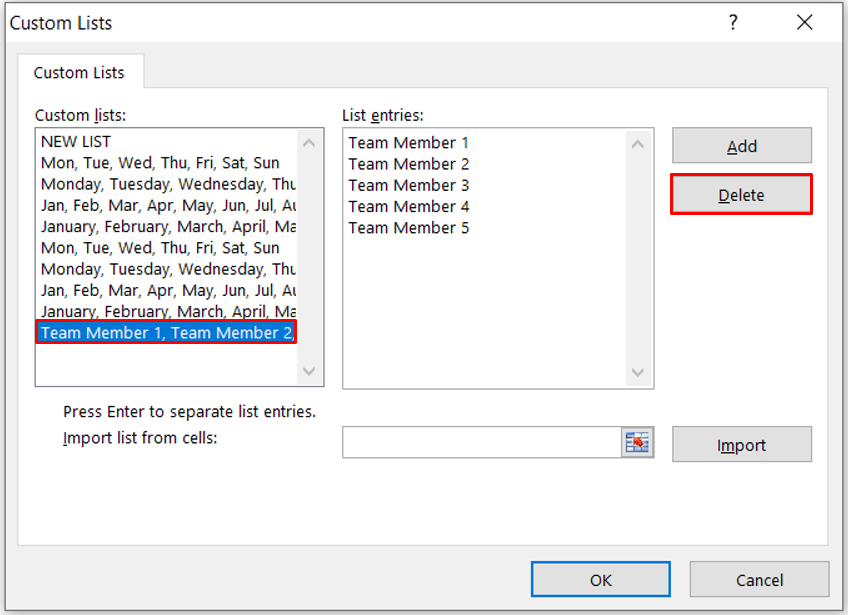
In this blog post we will see how to delete Custom List in Excel. We can delete the Custom List in Excel by following easy steps. 1. Go to File Menu. 2. Click on “Options”. 3. Once we click on the “Options” following window will appear on the screen. 4. Click on the “Advanced” Option as shown in following image. 5. Scroll down and Go to “General” option & click on the “Edit Customs Lists…”. 6. Once we click on the “Edit Custom Lists…” following window will appear on the screen named as “Custom List”. 7. But Custom Lists shown in above image are “Built in Lists” so we cannot delete this lists. And when we try to delete this “Built in Lists” ‘Delete Option’ will be disabled as shown in below image. 8. So, Here we have entered Team Member 1, Team Member 2, Team Member 3, Team Member 4 and Team Member 5 in List entries as shown in above image. ( Click here to learn about Creating Custom List in Excel ). 9. Now, to delete custom list highlighted in above image we have to select that sa...

Creating Custom List In Excel

Image
In this blog post we will see how to Create Custom List in Excel. “Custom List” is very helpful & time saving option in Excel. Generally, while working in Excel many times we have to do variety of work in very short period of time. During this time we can use this “Custom list” option in Excel. There are some lists already available in excel which are called as “ Built in Lists ”. These " Built in List" includes: 1. Days of the week (both in Short Form and Full Form) 2. Months of the year (both in Short Form and Full Form) Let’s have a look on “Built in List” in excel as shown in below image. But in addition to these “Built in List” , if we want to add few more lists then how to do that? Let’s learn through this blog post. Let’s take a simple example. A manager has to present monthly team report to higher management. While preparing the report he has to enter the name of each team member in the report.  If Manager is entering the names of employees manually each & e...

Date Filter in Excel

Image
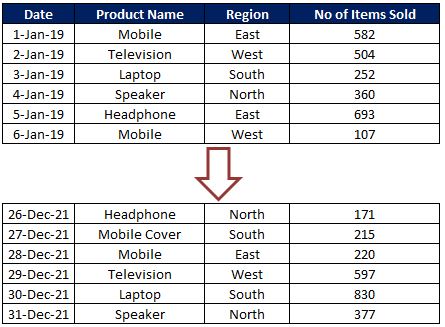
To explain “Date Filter“ in detail, we have a dummy data of some electronics products sold in 04 regions East, West, South and North from 1st Jan 2019 to 31st Dec 2021. Date filter can only be applied for the column which contains Date values. In our case we can apply Date filter for the Date column. Click on the drop down button which is available on header cell “Date” and click on “Date Filters” option as highlighted in below image. We can filter data available in this Date column based on below criteria’s: So let us now see each of the criteria in detail.  Please make a note that we will consider today’s date as “13th September 2020” throughout this post. So all the output results shown in this blog post will depend on this date. Equals:  This option will help us to filter the dates exactly equal to our input date. For example if we want to filter the data for date 1-Jan-20 then we will provide our “equals” criteria as shown in below image. This will provide us the output a...