Posts

Showing posts with the label Color

Protecting Workbook Structure in Excel
Image
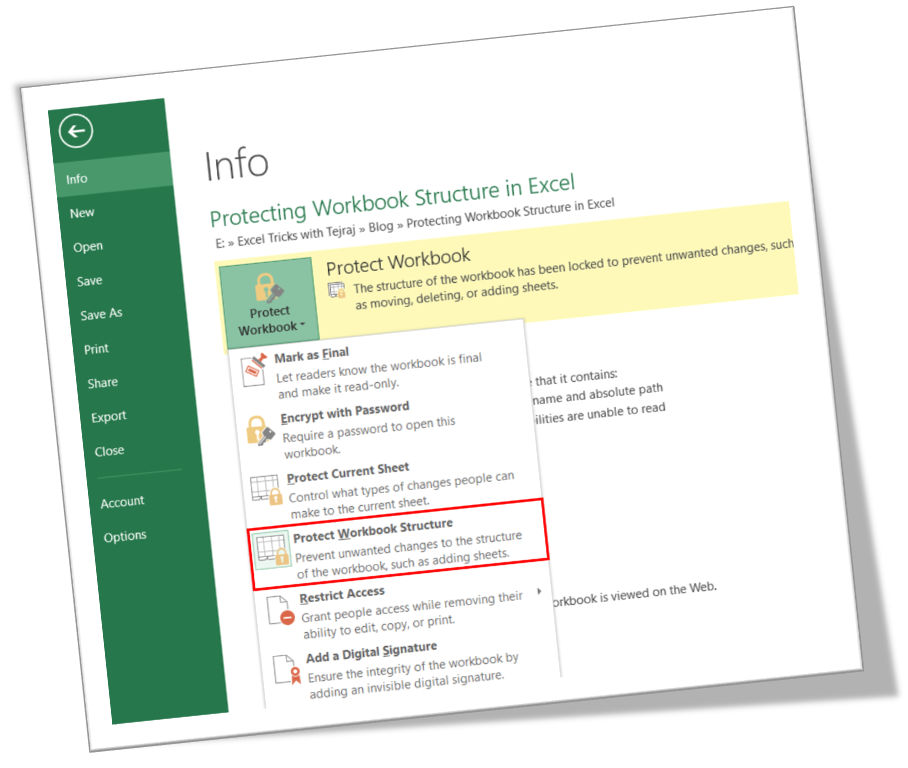
In this blog post we will learn to protect the workbook structure in excel. First of all let’s understand what it means by protecting workbook structure. Once we protect the workbook structure: 1. User cannot insert new worksheet . 2. User cannot delete existing worksheet. 3. User cannot rename worksheet . 4. User cannot hide & unhide the worksheet . 5. User cannot change the tab color . 6. User cannot copy the existing worksheet . 7. User cannot move the existing worksheet . Now, we will see how to protect worksheet structure in excel: 1. Click on “File” option on Ribbon. 2. Click on “Info” option as highlighted in below image. 3. Click on “Protect Workbook” option as highlighted in below image. 4. It will appear further options under “Protect Workbook”. Out of these options we have to click on “Protect Workbook Structure”. 5. Once we click on “Protect Workbook Structure” option, one dialog box will appear on our excel screen as shown in below image. Under this we have to check th...
Applying Filter on Icon Sets in Excel

Image
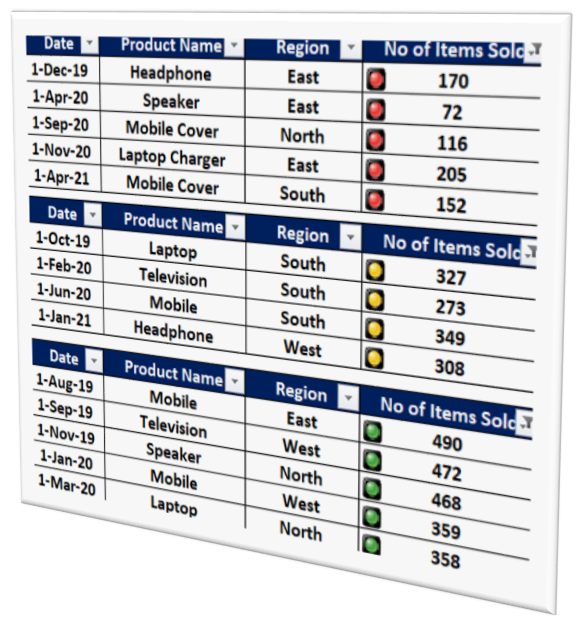
In this blog post we will learn to apply filter on “ Icons Sets ” in excel. For this we have a data of some electronic products sold in East, West, South and North regions from 1st Aug 2019 to 1st Apr 2021 with us and we have applied Icon Sets to this data. We have applied 3 Traffic Light Icon Sets to values under column “No of Items Sold”. We will now see how we can apply filters on these Icon Sets in above data: 1. Select the entire data on which we wish to apply filter on Icon Sets . 2. Go to “Data” tab and click on the “Filter” command (Data tab and Filter command are highlighted with red in below image). 3. Once we click on the “Filter” command, we can see that drop down button is now applied to all the cells in header row of the data on which we have applied Icon Sets as shown in red highlighted area. 4. Click on the drop down button for cell “No of Items Sold” from header row of the data on which we have applied Icon Sets . This will show us further options to apply the filte...

Customize SmartArt Graphic in Excel

Image
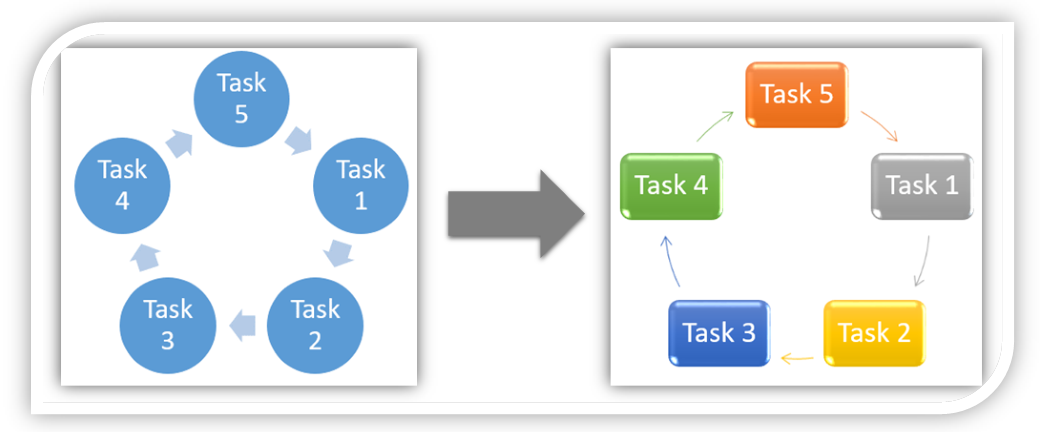
In this blog post we will learn to customize SmartArt Graphic in excel. Previously we have seen to insert SmartArt Graphic in excel but in this post we will learn to customize them to give beautiful effects. If you are not familiar about how to insert SmartArt Graphic in excel then click here before reading this blog post. We will take same example which we have taken in our previous blog post about inserting SmartArt Graphic in excel. In that blog post, we have inserted below SmartArt Graphic. Where to find commands to Customize SmartArt Graphic on Excel Screen: The main thing we should know is where we can find commands to customize SmartArt Graphics on our excel screen ? For this we have to click on the SmartArt Graphic which we have created. Once we click on this SmartArt Graphic, two additional tabs as listed below will get enabled on Ribbon . 1. Design Tab 2. Format Tab We will use these two tabs to Customize SmartArt Graphic in excel. Note : These two tabs will get enabled if...

Customizing Sparklines in Excel

Image
In our previous blog post we have learned to insert Sparklines in excel . Now, we will go little advanced in this blog post and learn to customize the Sparklines. If you have not visited our blog post on inserting Sparklines in excel then please click here before proceeding for this blog post, as we are going to use the same data which we have used previously. We have crated 03 types of Sparklines: Line, Column and Win/Loss as shown in below image. To customize Sparklines in excel, we have to first enable the “Design” tab on the ribbon. Design tab will get enabled if and only if we click on the Sparklines. If we click on any portion where Sparklines are not created then Design tab will get disabled. Once we click on the “Design Tab” then we can see the commands which are divided in various groups. In this blog post of “Customizing the Sparklines”, we will see all the commands “Show Group” which are highlighted with Pink color and the commands to change the “Sparkline Color” and “Mark...