Text Filter in Excel
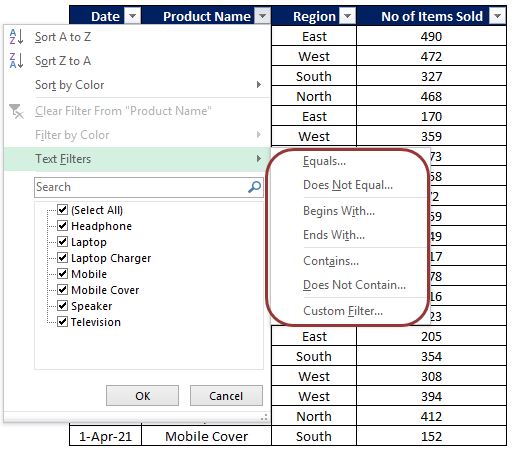
In our last blog post we have seen what is filter and how to apply filter in excel . Click here in case you missed to read about this. In this post we will see details about “Text Filters in Excel”. Text Filter can only be applied to columns which contains Text values. We will see all the sub types of Text filters in detail with below example. We have a data of some electronic products sold in East, West, South and North regions from 1st Aug 2019 to 1st Apr 2021 with us. As already stated, we can apply text filters to the column which contains text values. So in this case we will apply text filter for the “Product Name” column. Click on the drop down button which is available on header cell “Product Name”. You can see the “Text Filters” option as highlighted in below image. We can filter data available in this column based on below criteria’s: Equals Does Not Equals Begins With Ends With Contains Does Not Contains Custom Filter Now, we will see each of these criteria in detail: ...