Posts

Showing posts with the label Cell Address

COLUMNS Function in Excel

Image
In this blog post we will learn to about COLUMNS function in excel. COLUMNS function will return number of columns from selected cell range. Where to find COLUMNS function on Excel Screen: COLUMNS function can be found under “Lookup & Reference” function category under “Formulas” tab and under “Function Library” group as shown in below image: Once we click on “Lookup & Reference” function category, we can see list of various Lookup & Reference functions available in excel. COLUMNS function is highlighted in blue in below image. Once we click on COLUMNS option as highlighted above, we will get the function argument dialog box as shown in below image: Syntax of COLUMNS Function: The Syntax of COLUMNS function is as below: =COLUMNS(array) Arguments of COLUMNS Function: COLUMNS function takes only one argument. array : In this argument, we have to provide range of cells from which we want to find out number of columns. If we do not provide any reference here, then excel will au...
ROW Function in Excel

Image
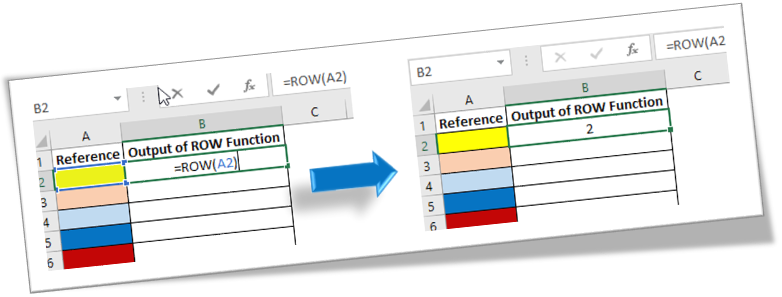
In this blog post we will learn to about ROW function in excel. ROW function will return a row number of a selected cell. Where to find ROW function on Excel Screen: ROW function can be found under “Lookup & Reference” function category under “Formulas” tab and under “Function Library” group as shown in below image: Once we click on “Lookup & Reference” function category, we can see list of various Lookup & Reference functions available in excel. ROW function is highlighted in blue in below image. Once we click on ROW option as highlighted above, we will get the function argument dialog box as shown in below image: Syntax of ROW Function: The Syntax of ROW function is as below: =ROW() Arguments of ROW Function: ROW function takes only one argument. reference : In this argument, we have to provide cell reference of a cell for which we want to find our row number. If we do not provide any reference here, then excel will automatically provide the row number of a cell where we ...

Remove Unwanted Spaces From Text String

Image
Many times we receive data in excel which is not properly formatted. It may contain some unwanted spaces which will waste our extra time to remove them. In this blog post we will learn to remove these unwanted spaces from text string in excel. For this we will use TRIM function which is readily available in excel. Where to find TRIM function on Excel Screen: TRIM function can be found under “Text Function” category under “Formula Tab” as shown in below image: Once we click on “Text” category, we can see list of various Text Functions available in excel. TRIM function is highlighted in red in below image. Once we click on TRIM option as highlighted above, we will get the function argument dialog box as shown in below image: Syntax of TRIM Function: The Syntax of TRIM function is as below: =TRIM(text) Arguments of TRIM Function: To use the TRIM function we have to use only one arguments: text : This is the only one and mandatory argument in which we can provide text string from which we ...

Converting Text from Uppercase to Lowercase in Excel

Image
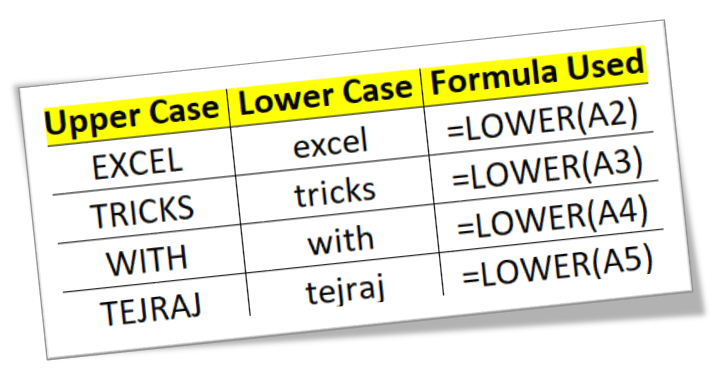
In this blog post we will learn to convert text from upper case to lower case. To convert text from upper case to lower case, we will use “LOWER” function in excel. We will learn this with the help of dummy data as shown in below image. In 1st column we have some text which is in uppercase. In 2nd column, we will use excel function which will help to convert the text from 1st column (which is in UPPER case) into lower case. We have to select the cell in which we want the output in “lower case” (In this case we have selected the 1st cell from 2nd column). Now, type the formula “=LOWER(A2)” in selected cell (Here “A2” is the cell address of 2nd cell from 1st column). After writing the formula, we have to just hit “enter” button on our keyboard. With this we can see the text is now converted in to lower case in selected cell. To convert the text from upper case to lower case in remaining cells, we have to just copy and paste the above formula. In below image you can see the formula which ...

Converting Text from Lowercase to Uppercase in Excel

Image
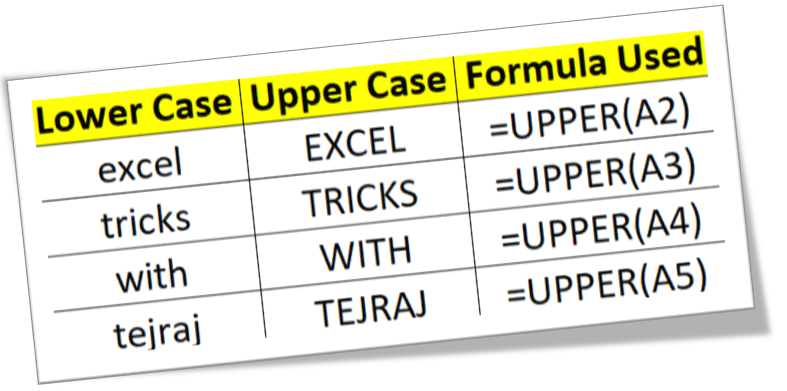
In this blog post we will learn to convert text from lower case to upper case. To convert text from lower case to upper case, we will use “UPPER” function in excel. We will learn this with the help of dummy data as shown in below image. In 1st column we have some text which is in lowercase. In 2nd column, we will use excel function which will help to convert the text from 1st column (which is in lower case) into upper case. We have to select the cell in which we want the output in “upper case” (In this case we have selected the 1st cell from 2nd column). Now, type the formula “=UPPER(A2)” in selected cell (Here “A1” is the cell address of 1st cell from 1st column). After writing the formula, we have to just hit “enter” button on our keyboard. With this we can see the text in now converted in to Upper Case in selected cell. To convert the text from lower case to upper case in remaining cells, we have to just copy and paste the above formula. In below image you can see the formula which ...

Dynamic Progress Chart in Excel

Image
In this blog post we will see to create “Dynamic Progress Chart in Excel" from scratch.  This chart will help you to present your data in a very dynamic way.  For this we will take a simple example. Let’s say we want to show how many males and females (in percentage) are present in our country. We have used dummy data as shown in below image to create “Dynamic Progress Chart in Excel”. Let us say we have 47% of Males and remaining 53% are Females. First we will write 47% in front of Male. To calculate the % of females we will use formula (1-Cell address of % of Male). First we will see the steps to create “Dynamic Progress Chart in Excel” for Male and then by using these steps you have to create “Dynamic Progress Chart in Excel” for Female by your own. So let us start… 1. First we have to create helper column just beside the cell where we have inserted % for male. Use formula (1- Cell address of % of Male). 2. Go to Insert Tab. Select “Insert Pie or Doughnut Chart” command an...