Posts

Showing posts with the label Design

Customize SmartArt Graphic in Excel
Image
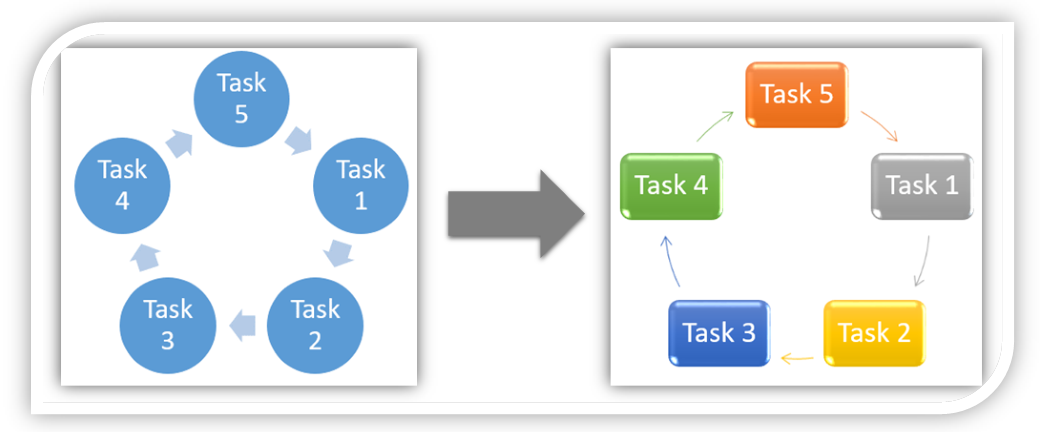
In this blog post we will learn to customize SmartArt Graphic in excel. Previously we have seen to insert SmartArt Graphic in excel but in this post we will learn to customize them to give beautiful effects. If you are not familiar about how to insert SmartArt Graphic in excel then click here before reading this blog post. We will take same example which we have taken in our previous blog post about inserting SmartArt Graphic in excel. In that blog post, we have inserted below SmartArt Graphic. Where to find commands to Customize SmartArt Graphic on Excel Screen: The main thing we should know is where we can find commands to customize SmartArt Graphics on our excel screen ? For this we have to click on the SmartArt Graphic which we have created. Once we click on this SmartArt Graphic, two additional tabs as listed below will get enabled on Ribbon . 1. Design Tab 2. Format Tab We will use these two tabs to Customize SmartArt Graphic in excel. Note : These two tabs will get enabled if...

Insert SmartArt Graphic in Excel

Image
In this blog post we will learn to insert SmartArt Graphic in excel. These SmartArt Graphics can be used to communicate information visually. SmartArt Command on Excel Screen: The main thing we should know is where we can find SmartArt command on our excel screen ? For this we have to go to “Insert” tab and under “Illustrations” group, we can find “SmartArt” command as highlighted in below image. Once we click on SmartArt command, one dialog box named as “Choose a SmartArt Graphic” will appear on our excel screen . All the SmartArt Graphics which are available in excel are divided in different categories. These categories we can see on the left hand side of dialog box. By default “All” category is selected, under which we can find all the SmartArt Graphics irrespective of their original category. SmartArt Graphic Categories: All the SmartArt Graphics are divided in various categories based on their designs. These categories are: 1. List 2. Process 3. Cycle 4. Hierarchy 5. Relationship ...

Area Chart in Excel

Image
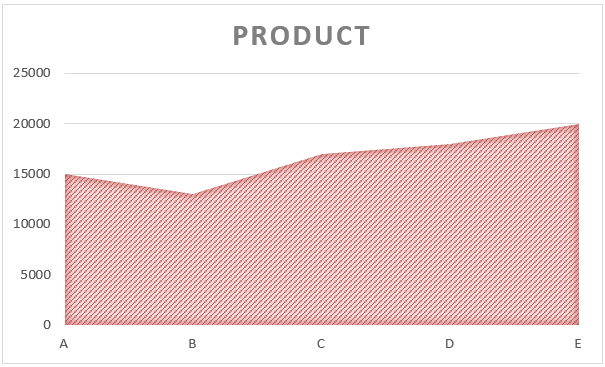
In this blog post we will learn to create “Area Chart in Excel”. We will take simple example to create “Area Chart in Excel”. We have listed 05 products: Product A, Product B, Product C, Product D and Product E along with their costs. Now we will see how we can convert this data into “Area Chart” for better data visualization. Just follow below steps: 1. Select the above data which we want to convert into Area Chart. 2. Go to “Insert” Tab, Select Insert Area Chart command under “Charts” group. 3. We will get further options for selecting Area Chart. Out of these appeared option we have to select “Area” option under “2-D Area” as shown in below image. 4. We can see that “Area Chart” is now created for our selected data. Changing Chart Style: To change the formatting of our Area Chart, click on the existing “Area Chart” and this will appear two additional tabs on our Ribbon. These tabs are: 1. Design Tab 2. Format Tab Once we click on the “Design” tab, we can see various Chart Styles for...

Line Chart in Excel

Image
In this blog post we will learn to create “Line Chart in Excel”. We will take simple example to create “Line Chart in Excel”. We have listed 05 products: Product A, Product B, Product C, Product D and Product E along with their costs. Now we will see how we can convert this data into “Line Chart” for better data visualization. Just follow below steps: 1. Select the above data which we want to convert into "Line Chart". 2. Go to “Insert” Tab, Select Insert Line Chart command under “Charts” group. 3. We will get further options for selecting Insert Line Chart . Out of these appeared option we have to select “Line” option as shown in below image. 4. We can see that “Line Chart” is now created for our selected data. Changing Chart Style: To change the formatting of our Line Chart, click on the existing “Line Chart” and this will appear two additional tabs on our Ribbon. These tabs are: 1. Design Tab 2. Format Tab Once we click on the “Design” tab, we can see various Chart Styles...