Posts

Showing posts with the label Move

Protecting Workbook Structure in Excel
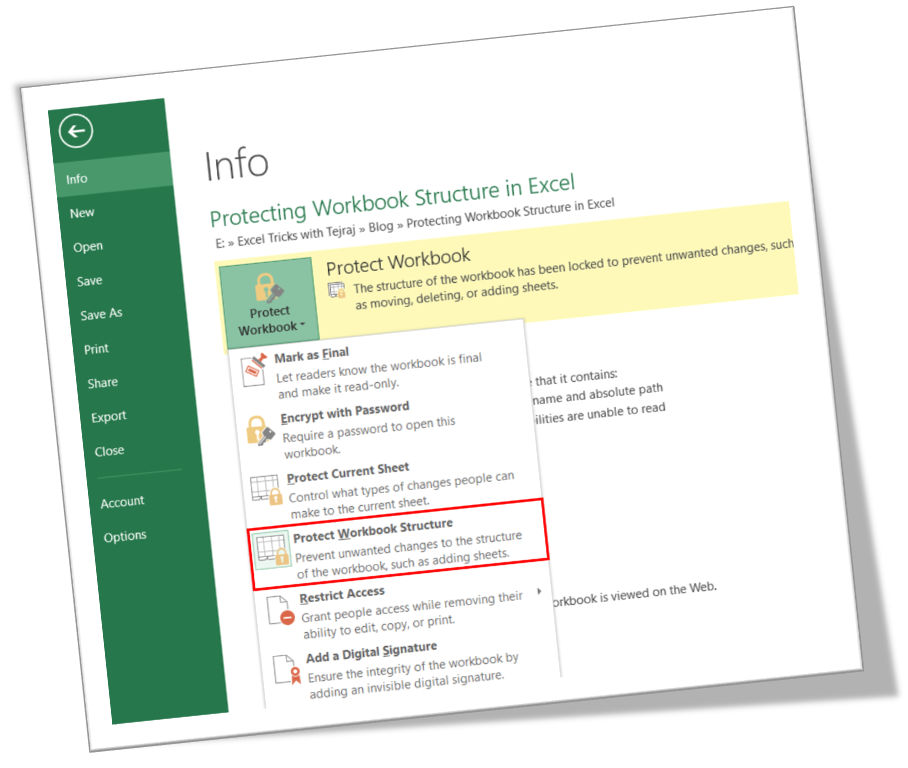
Image
In this blog post we will learn to protect the workbook structure in excel. First of all let’s understand what it means by protecting workbook structure. Once we protect the workbook structure: 1. User cannot insert new worksheet . 2. User cannot delete existing worksheet. 3. User cannot rename worksheet . 4. User cannot hide & unhide the worksheet . 5. User cannot change the tab color . 6. User cannot copy the existing worksheet . 7. User cannot move the existing worksheet . Now, we will see how to protect worksheet structure in excel: 1. Click on “File” option on Ribbon. 2. Click on “Info” option as highlighted in below image. 3. Click on “Protect Workbook” option as highlighted in below image. 4. It will appear further options under “Protect Workbook”. Out of these options we have to click on “Protect Workbook Structure”. 5. Once we click on “Protect Workbook Structure” option, one dialog box will appear on our excel screen as shown in below image. Under this we have to check th...


How to Rename Sheet in Excel

Image
Till now we have seen many things related to worksheets like 1. How to Insert New Sheet in Excel? 2. How to Copy Sheet in Excel? 3. How to Move Sheet in Excel? 4. How to Change Tab Color in Excel? Now, in this blog post we will see How to Rename Sheet in excel. We can rename the sheets by using three various methods: 1. By using Format Command 2. By using Mouse Right Click 3. By using Mouse Left Double Click We will see all these three methods in detail one by one. For this we will open an excel sheet. This excel sheet contains three sheets in it with name Sheet1, Sheet2 and Sheet3 respectively. Method 1: By using Format Command 1. Select the sheet which we want to rename. In our case we have selected Sheet1. 2. Go to Home Tab. Click on Format Command under “cells group”. Select option “Rename Sheet” from list of appeared options. 3. Old Sheet Name will get highlighted with grey color. 4. Type the new sheet name ...

How to Move Sheet in Excel

Image
In this blog post, we will see how we can move sheets in excel. To explain in detail, we will open new excel file which have three worksheets in it. There are three methods by which we can move the sheets. 1. By using Format command 2. By using Mouse Right Click 3. Drag and Drop method 1. By using Format command: In this method we use format command to move the selected sheet. Following steps will give you clear idea about how we can move the sheet in excel. 1. Select the sheet which we want to move. (In this case “Sheet1”). 2. Go to “Home Tab”. Select format command under “Cells group”. Select option “Move or Copy Sheet”. 3. “Move or Copy” dialog box will open. Select the sheet in this dialog box before which we want to move selected sheet. For example if we want to move selected sheet before sheet3 then select “Sheet3”. 4. We can see Selected Sheet (i.e. Sheet1) is moved before “Sheet3”. 5. Select “Move to end”...