Posts

Showing posts with the label Insert Function

MONTH Function in Excel
Image
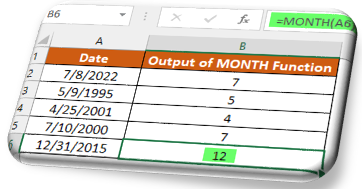
In this blog post we will learn about MONTH function in excel. MONTH function returns month of the year from the selected DATE. Where to find MONTH function on Excel Screen: MONTH function can be found under “Date & Time" Function category under “Formulas” tab and under “Function Library” group as shown in below image: Once we click on “Date & Time” category, we can see list of various Date & Time Functions available in excel. MONTH function is highlighted in blue in below image. Once we click on MONTH option as highlighted above, we will get the function argument dialog box as shown in below image: Syntax of MONTH Function: The Syntax of MONTH function is as below: =MONTH(serial_number) Arguments of MONTH Function: To use the MONTH function, we have to provide only one argument: Serial_number : In this argument we have to enter a date from which we want to identify month. Need of MONTH Function: Now, the question is why we have to use this MONTH function? We will unde...
Applying VLOOKUP in Excel

Image
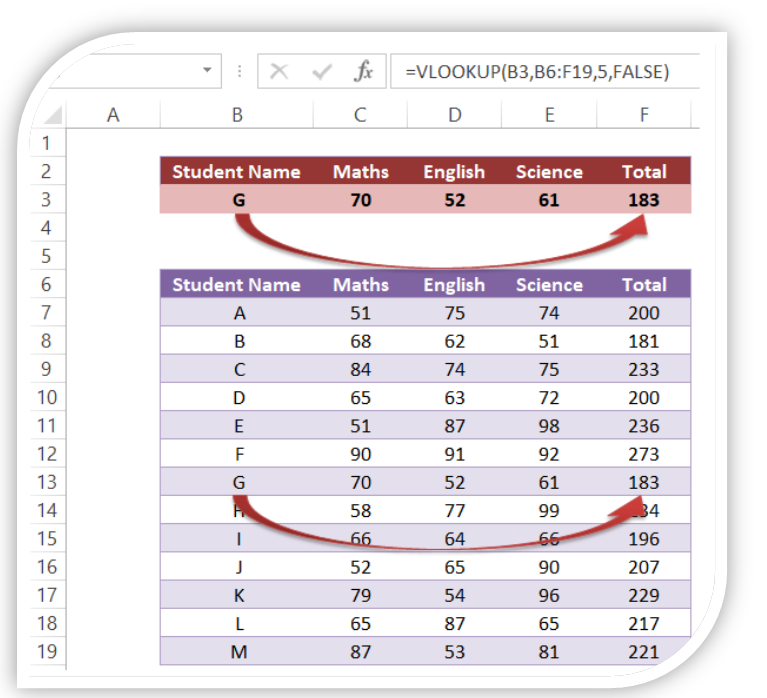
In this blog post we will see how we can apply VLOOKUP in excel. For this we have prepared a dummy data as shown in the below image. This data is divided into two groups. Blue Highlighted Data : This data contains Student Names and marks obtained by each student in the subject Maths, English and Science. In the last column we have calculated total marks obtained by each student. Red Highlighted Data : This data contains similar headers as that of Blue Highlighted data. We will apply VLOOKUP in these cells. Methods to find VLOOKUP Function on Excel Screen: We can find VLOOKUP function using two different methods. In this first method , VLOOKUP function can be found in “Lookup & Reference” which we can find in “Function Library” group under “Formulas” tab (Below screenshot for your reference). Once we click on this “VLOOKUP”, one dialog box named as “Function Arguments” will appear on excel screen. There are total 04 arguments available for this VLOOKUP function. Once we enter all th...

Formlua Bar in Excel

Image
In this blog post we will see details about Formula Bar. Formula bar is situated below the Ribbon and above the columns in the worksheet area. YouTube Video We can see the content of active cell in formula bar. Active cell is the cell which is currently selected with the help of mouse pointer or with the help of keyboard keys. Also we can insert/view the formulas in this. For example if we type “Formula Bar” in cell G21, the same content will appear in the Formula Bar.   Sometimes we type a string which contains large number of characters and the cell width is not enough to show entire string. In this case we can see the contents which we are typing in the "Formula Bar" If we type any formula then it will also appear in Formula Bar. For example in cell G21 we have inserted a formula to calculate sum of two numbers 3 and 4. The same formula we can see in the Formula Bar. We can see two letters “ f x ” on the Formula Bar. This is called as insert function...