Posts

Showing posts with the label Date

Separate Date & Time in Excel

Image
Many times we are working with date and time values while working in excel. Many time we get data in which date and time is mentioned in a single cell (as shown in below image). But what if we want to separate the date as well time from this value? Well, we will learn to separate the date and time in this blog post whenever we will face similar situation. Basic Information: Before moving to this separation, first of all we need to understand some basic concepts related to date and time values which are available in excel. Dates are nothing but the integer values stored in excel. Whereas Times are the decimal values stored in excel.  For example: If we enter integer value 1 and change the cell format to dates, then it will become 01 January 1900.  If we enter the decimal value 0.59 and convert the cell format to time, then it will become 02:09 PM. Now, we will use these basic concepts to separate date and time from combined value. For this we will use INT function in excel . We...

NOW Function in Excel

Image
In our previous blog post, we have seen how to insert Today’s date in excel. In this blog post we will learn to insert today’s date along with current time in excel. To display today’s date along with current time we can use NOW function which is readily available in excel. Where to find NOW function on Excel Screen: NOW function can be found under “Date & Time Function” category under “Formulas” tab and under “Function Library” group as shown in below image: Once we click on “Date & Time” category, we can see list of various Date & Time Functions available in excel. NOW function is highlighted in blue in below image. Once we click on NOW option as highlighted above, we will get the function argument dialog box as shown in below image: Syntax of NOW Function: The Syntax of NOW function is as below: =NOW() Arguments of NOW Function: NOW function does not take any argument. Once we click on the “OK” button on dialog box which appears once we click NOW function as explained ab...

TODAY Function in Excel

Image
In this blog post we will learn about TODAY function in excel. Whenever we want to display today’s date in excel, we can use TODAY function. Where to find TODAY function on Excel Screen: TODAY function can be found under “Date & Time Function” category under “Formulas” tab and under “Function Library” group as shown in below image: Once we click on “Date & Time” category, we can see list of various Date & Time Functions available in excel. TODAY function is highlighted in blue in below image. Once we click on TODAY option as highlighted above, we will get the function argument dialog box as shown in below image: Syntax of TODAY Function: The Syntax of TODAY function is as below: =TODAY() Arguments of TODAY Function: This function does not take any argument. Once we click on the “OK” button on dialog box which appears once we click TODAY function as explained above, today’s date will immediately appear in selected cell. Another way to insert today’s date: Instead of entering...

MINUTE Function in Excel

Image
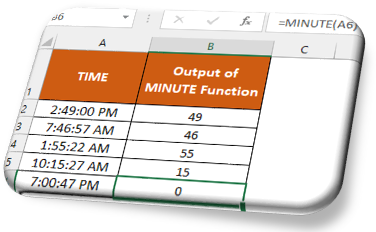
In this blog post we will learn about MINUTE function in excel. MINUTE function returns MINUTE portion from the selected TIME. The output of MINUTE function will be from 0 to 59. Where to find MINUTE function on Excel Screen: MINUTE function can be found under “Date & Time Function” category under “Formulas” tab and under “Function Library” group as shown in below image: Once we click on “Date & Time” category, we can see list of various Date & Time Functions available in excel. MINUTE function is highlighted in blue in below image. Once we click on MINUTE option as highlighted above, we will get the function argument dialog box as shown in below image: Syntax of MINUTE Function: The Syntax of MINUTE function is as below: =MINUTE(serial_number) Arguments of MINUTE Function: To use the MINUTE function, we have to provide only one argument: Serial_number : In this argument we have to enter a time from which we want to identify MINUTE. Example of MINUTE Function: Let’s learn a...

HOUR Function in Excel

Image
In this blog post we will learn about HOUR function in excel. HOUR function returns HOUR portion from the selected TIME. The output of HOUR function will be from 0 to 23 in which 0 is for 12.00 AM and 23 is for 11.00 PM. Where to find HOUR function on Excel Screen: HOUR function can be found under “Date & Time Function” category under “Formulas” tab and under “Function Library” group as shown in below image: Once we click on “Date & Time” category, we can see list of various Date & Time Functions available in excel. HOUR function is highlighted in blue in below image. Once we click on HOUR option as highlighted above, we will get the function argument dialog box as shown in below image: Syntax of HOUR Function: The Syntax of HOUR function is as below: =HOUR(serial_number) Arguments of HOUR Function: To use the HOUR function, we have to provide only one argument: Serial_number : In this argument we have to enter a time from which we want to identify HOUR. Example of HOUR Fun...

TIME Function in Excel

Image
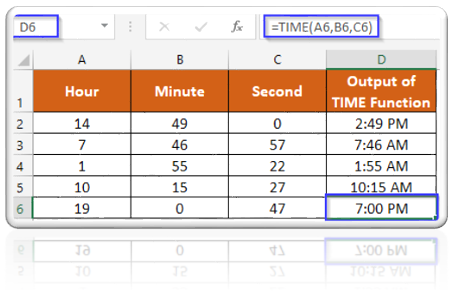
In this blog post we will learn about TIME function in excel. When we have Hour, Minute and Second as a three separate values then with the help of TIME function we can convert them into single value which will represent a particular TIME. Where to find TIME function on Excel Screen: TIME function can be found under “Date & Time Function” category under “Formulas” tab and under “Function Library” group as shown in below image: Once we click on “Date & Time” category, we can see list of various Date & Time Functions available in excel. TIME function is highlighted in blue in below image. Once we click on TIME option as highlighted above, we will get the function argument dialog box as shown in below image: Syntax of TIME Function: The Syntax of TIME function is as below: =TIME(hour, minute, second) Arguments of TIME Function: To use the TIME function, we have to provide three arguments: Hour : In this argument we have to enter a number from 0 to 23 which represents hour from...