Posts

Showing posts with the label Function

PI Function in Excel

Image
In this blog post we will learn to about PI function in excel. PI function will return value of Pi which is mathematical constant which has value of 3.14. The PI function in excel return the value of Pi accurate to 15 digits. Importance of PI Function? Pi can be used to solve many mathematical problems. So if you are thinking to solve some mathematical problems for example to “calculate area of circle” or to “calculate the circumference of circle” (these are just few examples) then you can use the PI function effectively. Where to find PI function on Excel Screen: PI function can be found under “Math & Trig” function category under “Formulas” tab and under “Function Library” group as shown in below image: Once we click on “Math & Trig” function category, we can see list of various Math & Trig functions available in excel. PI function is highlighted in blue in below image. Once we click on PI option as highlighted above, we will get the function argument dialog box as shown ...
PRODUCT Function in Excel

Image
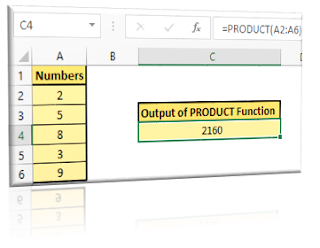
In this blog post we will learn about PRODUCT function in excel. PRODUCT function can be used when we want to multiply multiple values provided in the arguments. Importance of PRODUCT Function? In mathematics, PRODUCT of a number is calculated by multiplying all the input numbers. So in case we want to multiply the numbers then we can use the PRODUCT function. Usage of this function is more effective whenever we want to multiply huge numbers together. Where to find PRODUCT function on Excel Screen: PRODUCT function can be found under “Math & Trig” function category under “Formulas” tab and under “Function Library” group as shown in below image: Once we click on “Math & Trig” function category, we can see list of various Math & Trig functions available in excel. PRODUCT function is highlighted in blue in below image. Once we click on PRODUCT option as highlighted above, we will get the function argument dialog box as shown in below image. Syntax of PRODUCT Function: The Synt...

RANDBETWEEN Function in Excel

Image
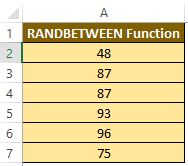
In this blog post we will learn to about RANDBETWEEN function in excel. RANDBETWEEN Function will return random numbers between the two numbers provided by the user. Where to find RANDBETWEEN function on Excel Screen: RANDBETWEEN function can be found under “Math & Trig” function category under “Formulas” tab and under “Function Library” group as shown in below image: Once we click on “Math & Trig” function category, we can see list of various Math & Trig functions available in excel. RANDBETWEEN function is highlighted in blue in below image. Once we click on RANDBETWEEN option as highlighted above, we will get the function argument dialog box as shown in below image. Syntax of RANDBETWEEN Function: The Syntax of RANDBETWEEN function is as below: =RANDBETWEEN(bottom, top) Arguments of RANDBETWEEN Function: RANDBETWEEN function takes two arguments. One is smallest integer value and the other is largest integer value. RANDBETWEEN function will return the random value between...

RAND Function in Excel

Image
In this blog post we will learn to about RAND function in excel. RAND Function will return random numbers which are greater than or equal to zero and less than one. Where to find RAND function on Excel Screen: RAND function can be found under “Math & Trig” function category under “Formulas” tab and under “Function Library” group as shown in below image: Once we click on “Math & Trig” function category, we can see list of various Math & Trig functions available in excel. RAND function is highlighted in blue in below image. Once we click on RAND option as highlighted above, we will get the function argument dialog box as shown in below image. Syntax of RAND Function: The Syntax of RAND function is as below: =RAND() Arguments of RAND Function: RAND function does not take any argument. Important Points about RAND Function: 1. RAND function does not take any argument 2. Output of RAND function changes once excel sheet gets recalculated (either by automatic or manual recalculatio...

INT Function in Excel

Image
In this blog post we will learn about INT function in excel. INT Function will round a number down to nearest integer. Where to find INT function on Excel Screen: INT function can be found under “Math & Trig” function category under “Formulas” tab and under “Function Library” group as shown in below image: Once we click on “Math & Trig” function category, we can see list of various Math & Trig functions available in excel. INT function is highlighted in blue in below image. Once we click on INT option as highlighted above, we will get the function argument dialog box as shown in below image. Syntax of INT Function: The Syntax of INT function is as below: =INT(number) Arguments of INT Function: INT function takes only one argument which is mandatory. number : This is the real number which you want to round down to an integer Example of INT Function: We have listed few random numbers in column A. With the help of INT function, we will round down these number to an integer. Fo...

POWER Function in Excel

Image
In this blog post we will learn to about POWER function in excel. Whenever we want to return value of a number raised to its power then we can use POWER function which is readily available in excel. What is POWER of a number? In mathematics, POWER of a number means how many times a number we want to use in multiplication. For example, 5^2 (5 to the power of 2) means 5 is used twice in multiplication (5x5 = 25). 2^3 (2 to the power of 3) means 2 is used three times in multiplication (2x2x2 = 8). Where to find POWER function on Excel Screen: POWER function can be found under “Math & Trig” function category under “Formulas” tab and under “Function Library” group as shown in below image: Once we click on “Math & Trig” function category, we can see list of various Math & Trig functions available in excel. POWER function is highlighted in blue in below image. Once we click on POWER option as highlighted above, we will get the function argument dialog box as shown in below image. ...