Posts

Showing posts with the label bar

Doughnut Chart in Excel

Image
Previously we have learned about creating “ Column Charts in Excel ”, “ Bar Charts in Excel ” and “ Pie Charts in Excel ”. Now, in this blog post we will learn to create “Doughnut Chart in Excel”. We will take very simple example to create “Doughnut Chart in Excel”. We have listed 05 products: Product A, Product B, Product C, Product D and Product E along with their costs. Now we have to convert this data into Doughnut Chart for better data visualization. Just follow below steps: 1. Select the above data which we want to convert into Doughnut Chart. 2. Go to “Insert” Tab, Select Insert Pie or Doughnut Chart command under “Charts” group. 3. We will get further options for selecting Insert Pie or Doughnut Chart . Out of these appeared option we have to select “Doughnut” option as shown in below image. 4. We can see that “Doughnut Chart” is now created for our selected data. Changing Chart Style: To change the formatting of our Doughnut Chart, click on the existing “Doughnut Chart” and t...
Pie Chart in Excel

Image
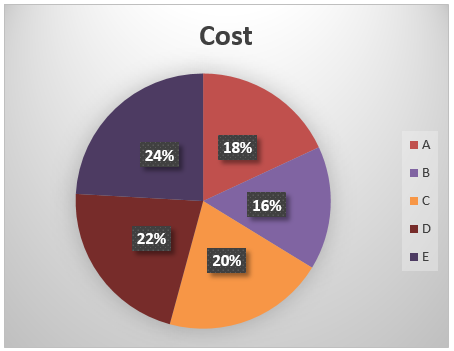
Previously we have learned about creating “ Column Charts in Excel ” and “ Bar Charts in Excel ”. Now, in this blog post we will learn how to create “Pie Chart in Excel”. We will take very simple example to create “Pie Chart in Excel”. We have listed 05 products: Product A, Product B, Product C, Product D and Product E along with their costs. Now we have to convert this data into Pie Chart for better data visualization. Just follow below steps: 1. Select the above data which we want to convert into Pie Chart. 2. Go to “Insert” Tab, Select Insert Pie or Doughnut Chart command under “Charts” group. 3. We will get further options for selecting Insert Pie or Doughnut Chart . Out of these appeared option we have to select “ Pie ” under “2-D Pie” option as shown in below image. 4. We can see that “Pie Chart” is now created for our selected data. Changing Chart Style: To change the formatting of our Pie Chart, click on the existing “Pie Chart” and this will appear two additional tabs on our ...

Data Bars in Conditional Formatting

Image
In continuation to series of posts on Conditional Formatting, we will learn how to use Data Bars in Conditional Formatting through this post. Conditional Formatting command can be found in Styles group under Home tab as shown in below image. Click on the Conditional Formatting option and select “Data Bars” option from the list of appeared options. We can now see all the “Data Bar” options available in excel. These “Data Bar” options are categorized into two groups.  1. Solid Fill 2. Gradient Fill: There are six different “Data Bar” colors available in each group. These colors are listed below: 1. Blue Data Bar 2. Green Data Bar 3. Red Data Bar 4. Orange Data Bar 5. Light Blue Data Bar 6. Purple Data Bar Each group with their respective colors are shown in below image: Solid Fill: Gradient Fill: Now we will see how we can apply these “Data Bars” on our data. For this we have created dummy data of few employees and Incentive received by them. Example with Gradient Fill: 1. Select all...