Posts

TRANSPOSE Function in Excel

Image
In this blog post we will learn to about TRANSPOSE function in excel. We can use TRANSPOSE function to convert vertical cell range into horizontal cell range and horizontal cell range into vertical cell range . Where to find TRANSPOSE function on Excel Screen: TRANSPOSE function can be found under “Lookup & Reference” function category under “Formulas” tab and under “Function Library” group as shown in below image: Once we click on “Lookup & Reference” function category, we can see list of various Lookup & Reference functions available in excel. TRANSPOSE function is highlighted in blue in below image. Once we click on TRANSPOSE option as highlighted above, we will get the function argument dialog box as shown in below image: Syntax of TRANSPOSE Function: The Syntax of TRANSPOSE function is as below: =TRANSPOSE(array) Arguments of TRANSPOSE Function: TRANSPOSE function takes only one argument. array : In this argument we have to select cell range which we want to conver...

CHOOSE Function in Excel

Image
In this blog post we will learn to about CHOOSE function in excel. CHOOSE function will choose a value or an action to perform based on the provided index number. Where to find CHOOSE function on Excel Screen: CHOOSE function can be found under “Lookup & Reference” function category under “Formulas” tab and under “Function Library” group as shown in below image: Once we click on “Lookup & Reference” function category, we can see list of various Lookup & Reference functions available in excel. CHOOSE function is highlighted in blue in below image. Once we click on CHOOSE option as highlighted above, we will get the function argument dialog box as shown in below image: Syntax of CHOOSE Function: The Syntax of CHOOSE function is as below: =CHOOSE(index_num, value1, [value2], …) Arguments of CHOOSE Function: CHOOSE function have below arguments. index_num : This argument decides which value argument is to be selected. We must provide number between 1 to 254. If we are providing...

COLUMNS Function in Excel

Image
In this blog post we will learn to about COLUMNS function in excel. COLUMNS function will return number of columns from selected cell range. Where to find COLUMNS function on Excel Screen: COLUMNS function can be found under “Lookup & Reference” function category under “Formulas” tab and under “Function Library” group as shown in below image: Once we click on “Lookup & Reference” function category, we can see list of various Lookup & Reference functions available in excel. COLUMNS function is highlighted in blue in below image. Once we click on COLUMNS option as highlighted above, we will get the function argument dialog box as shown in below image: Syntax of COLUMNS Function: The Syntax of COLUMNS function is as below: =COLUMNS(array) Arguments of COLUMNS Function: COLUMNS function takes only one argument. array : In this argument, we have to provide range of cells from which we want to find out number of columns. If we do not provide any reference here, then excel will au...

ROWS Function in Excel

Image
In this blog post we will learn to about ROWS function in excel. ROWS function will return number of rows from selected cell range. Where to find ROWS function on Excel Screen: ROWS function can be found under “Lookup & Reference” function category under “Formulas” tab and under “Function Library” group as shown in below image: Once we click on “Lookup & Reference” function category, we can see list of various Lookup & Reference functions available in excel. ROWS function is highlighted in blue in below image. Once we click on ROWS option as highlighted above, we will get the function argument dialog box as shown in below image: Syntax of ROWS Function: The Syntax of ROWS function is as below: =ROWS(array) Arguments of ROWS Function: ROWS function takes only one argument. array : In this argument, we have to provide range of cells from which we want to find out numbers of rows. If we do not provide any reference here, then excel will automatically provide the number of a ce...

COLUMN Function in Excel

Image
In this blog post we will learn to about COLUMN function in excel. COLUMN function will return column number of a selected cell. Where to find COLUMN function on Excel Screen: COLUMN function can be found under “Lookup & Reference” function category under “Formulas” tab and under “Function Library” group as shown in below image: Once we click on “Lookup & Reference” function category, we can see list of various Lookup & Reference functions available in excel. COLUMN function is highlighted in blue in below image. Once we click on COLUMN option as highlighted above, we will get the function argument dialog box as shown in below image: Syntax of COLUMN Function: The Syntax of COLUMN function is as below: =COLUMN() Arguments of COLUMN Function: COLUMN function takes only one argument. reference : In this argument, we have to provide cell reference of a cell for which we want to find out COLUMN number. If we do not provide any reference here, then excel will automatically provi...

ROW Function in Excel

Image
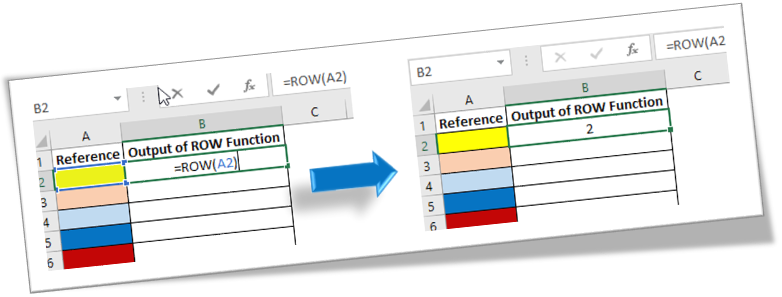
In this blog post we will learn to about ROW function in excel. ROW function will return a row number of a selected cell. Where to find ROW function on Excel Screen: ROW function can be found under “Lookup & Reference” function category under “Formulas” tab and under “Function Library” group as shown in below image: Once we click on “Lookup & Reference” function category, we can see list of various Lookup & Reference functions available in excel. ROW function is highlighted in blue in below image. Once we click on ROW option as highlighted above, we will get the function argument dialog box as shown in below image: Syntax of ROW Function: The Syntax of ROW function is as below: =ROW() Arguments of ROW Function: ROW function takes only one argument. reference : In this argument, we have to provide cell reference of a cell for which we want to find our row number. If we do not provide any reference here, then excel will automatically provide the row number of a cell where we ...